How to translate a PowerPoint and keep the slides editable
A translated deck still has to work as a presentation. Keep its text editable, check what was extracted, and review the actual slides before handing it over.
Start with the editable .pptx, translate its text, review the proposed wording, and download a PowerPoint file you can open and edit. Then inspect the slides in PowerPoint. Keeping objects in place does not guarantee that longer translated wording will fit, that every graphic contains editable text, or that the presentation is ready to deliver.
That is the practical problem behind a reader’s question about translating 150-plus slides. Another PowerPoint discussion about a hundred-slide deck includes a useful objection to copying Outline view: text boxes can be missing from that handoff. A presentation needs an inventory of its content as well as a translation method.
This guide is written by Nativ. Product interfaces and documentation were checked on 29 October 2026. Below, we separate a local file-structure test from the steps you can run in the dashboard.
Choose a workflow that returns the file you need
For a few passages, Microsoft documents selected-text translation through Review → Translate. Live translated subtitles serve a different purpose: they help an audience follow speech, rather than giving you a translated slide deck.
For whole-file work, DeepL’s PowerPoint add-in documentation covers text translation and presentation-file translation. Its current guide requires DeepL Translator Pro for whole-file translation. Check platform compatibility and your account’s eligibility before choosing it. These are documentation-based alternatives; we did not run a comparative account test or rank translation quality.
Use Nativ’s Automation dashboard when the deck should go through a file-localisation and review workflow with your workspace’s brand guidance. Start with .pptx; save a copy of an older .ppt in that format before uploading. Retain the original so the reviewer can compare it with the result.
Check where the words live
A title placeholder, a text box inside a group, a table cell and a speaker note are separate places to look. A screenshot containing words is another kind of material entirely.
| Content | What to check |
|---|---|
| Titles and text boxes | The full sentence was extracted, including text outside placeholders. Review line breaks and emphasis in the final slide. |
| Grouped shapes | Text inside the group appears in the review. Keep the connection between the wording and its visual object. |
| Tables | Headers and cell labels are covered, while numbers, units and product identifiers retain the intended meaning. |
| Speaker notes | Review the presenter’s script as well as the visible slide. Confirm the downloaded notes contain the intended language. |
| Screenshots, charts and SmartArt | Inspect these separately. Do not infer complete coverage from a successful translation of ordinary text boxes. |
On a narrow screen, scroll the preflight table horizontally.
If a label is baked into a picture, use an image-localisation workflow and replace the reviewed asset in the deck. Keep the editable original of a chart or diagram where possible; a flat export makes later revisions harder.
Try one representative deck in Nativ
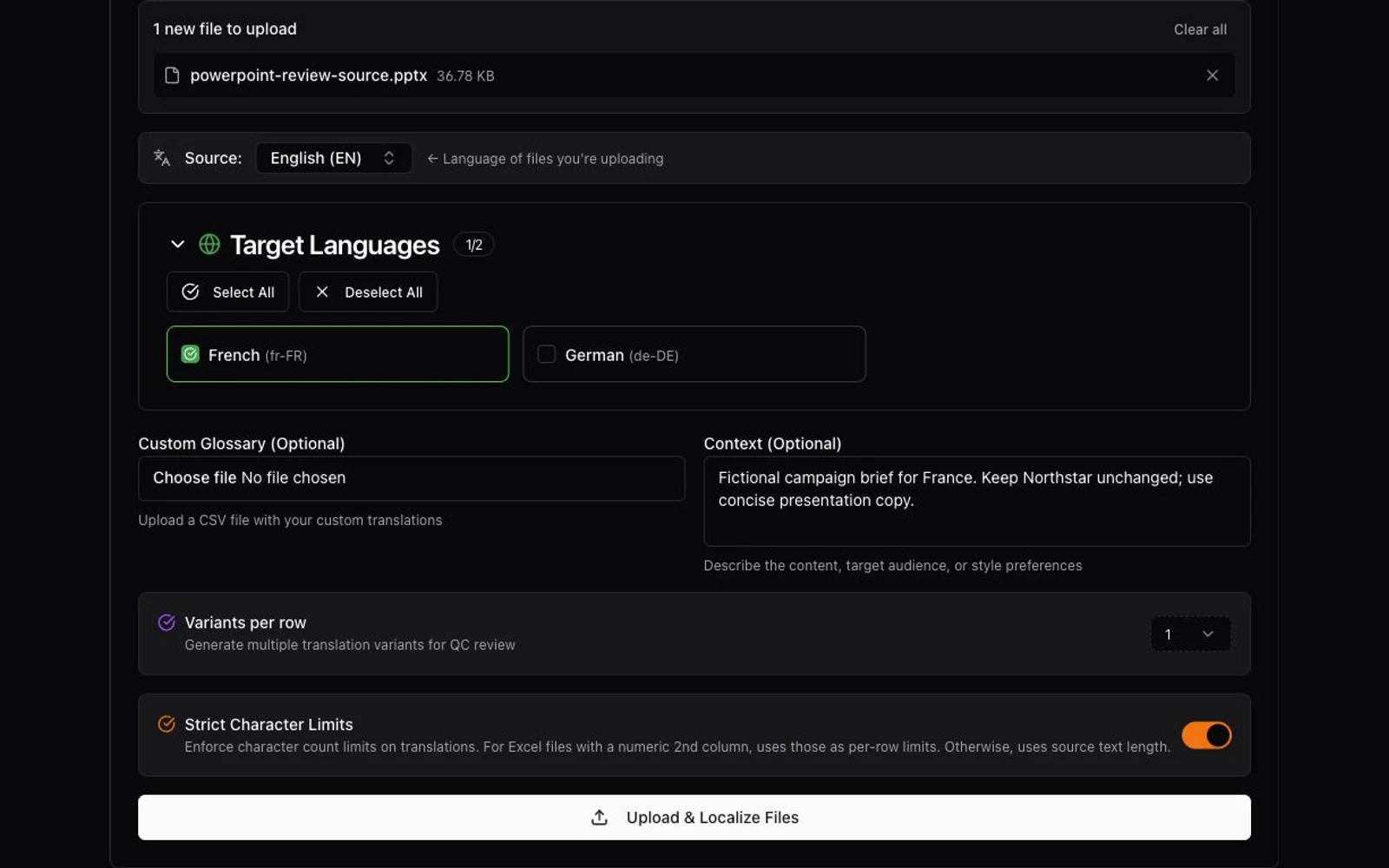
- Open Automation. You need a Nativ account, an active API key and sufficient credits. This is the dashboard’s file-upload workflow; no PowerPoint add-in is required.
- Choose the
.pptxand check Source. Source is the language already in the deck. Select the target language or regional variant you actually intend to deliver. Configure missing target languages in the workspace first. - Add the presentation brief. Use Context for the audience, purpose and placement. Add an optional CSV glossary for preferred terminology, with your maintained brand voice and style guidance in the workspace.
- Consider length constraints. The Strict Character Limits option asks for more compact wording. It can help with tight boxes, but character count is not rendered width. A different font, an accent or a long unbroken word can still change the fit.
- Run Upload & Localize Files, then open Files. Locate the target-language result and use the available QC/review controls to compare and revise the copy. Have someone who understands the target locale review terminology, meaning and tone.
- Download the reviewed PowerPoint. Use Download (pptx file) for the presentation. The QC workbook is a review artifact, not the deck you will present. The formatted download applies the current saved QC wording; open that downloaded file for the final check.
A useful Context brief is short and specific:
Keep source and target versions identifiable, such as campaign.en.v1.pptx and campaign.fr-FR.reviewed.v1.pptx. When the source changes, record which language versions need another pass.
A small file test you can inspect
We created a fictional three-slide deck with ordinary text, two text boxes inside a group, a table and speaker notes. We exercised Nativ’s file extraction and reconstruction locally using manually supplied French example wording, without calling a translation provider.
The check found 15 non-empty text paragraphs, including the table cells and notes. After reconstruction, the file reopened with three slides, the expected replacement text and the same top-level shape positions and sizes in this fixture. Text remained stored as editable text in the presentation package.
You can inspect the files:
- Original fictional deck
- Reconstructed deck with illustrative French wording
- Source-to-example text map
The French copy has not been professionally reviewed. The test covered file structure and text replacement; it did not evaluate the full live localisation pipeline, language quality or PowerPoint’s rendered appearance. Charts, SmartArt, images and animations were outside this fixture. Use the sample to establish your own review, rather than treating it as proof for every presentation.
Review the final slides where they will be presented
Open the downloaded presentation in PowerPoint and run the slideshow. Start with the densest slide, the longest translated headline and any non-Latin script, then check the remaining slides.
Look for clipped text, missing glyphs, changed emphasis, awkward breaks and text that became too small to read. Check notes in the presenter view. Verify chart labels, image text, links and any animation or build sequence your talk depends on. A language review and a slide review answer different questions; both belong before delivery.
When you revise wording in Nativ’s QC view, save the change and download a fresh presentation before checking it again. A previously downloaded file cannot incorporate a later edit by itself.
Start with one representative deck and one locale in Nativ Automation. Finish the loop from source file to reviewed copy to usable presentation before expanding to the full collection.
Product references
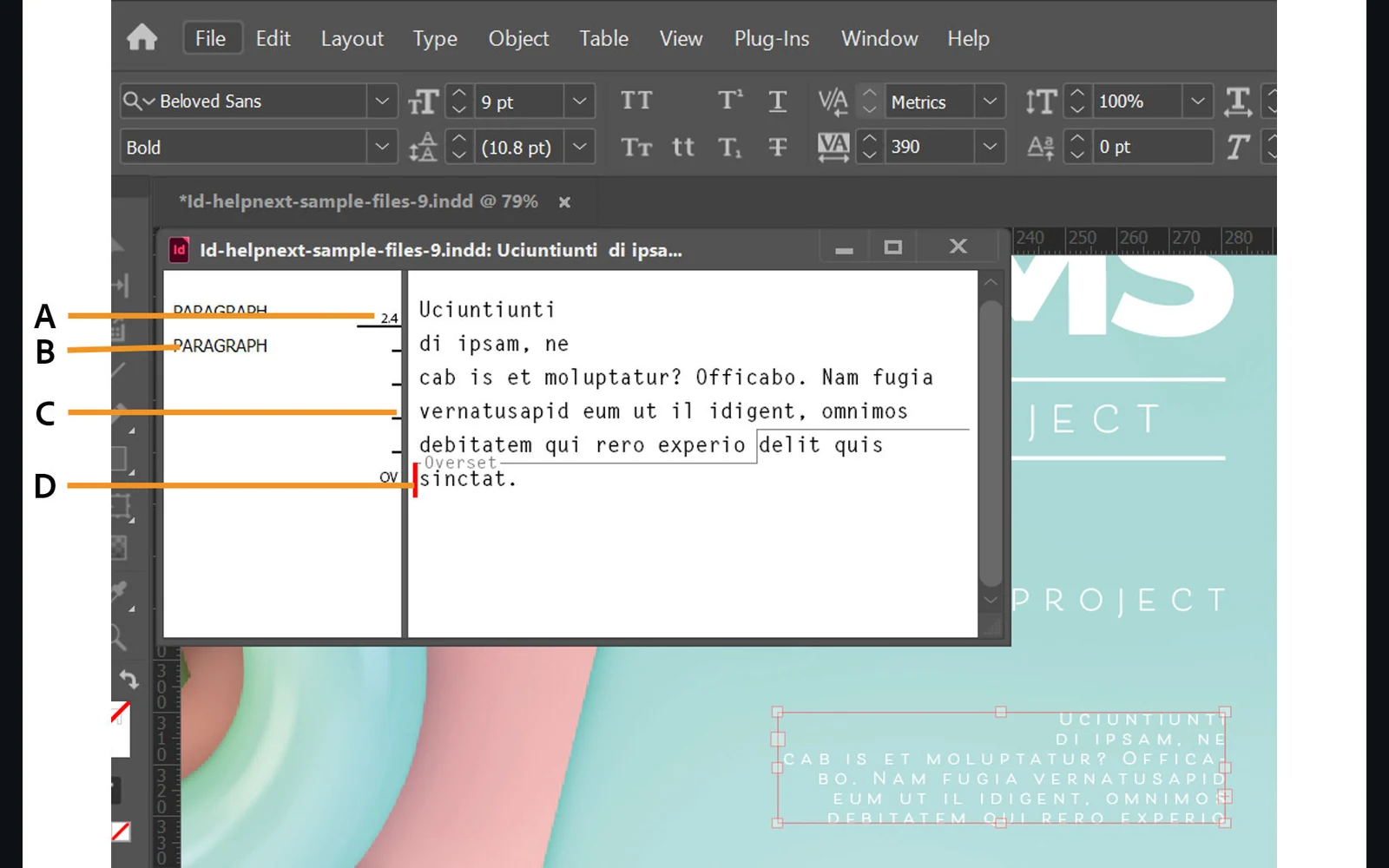
Why translated text disappears in InDesign, and how to find it
Diagnose missing translated InDesign text: inspect the story, check overset and fonts, verify an IDML phrase locally, then review the exported page.
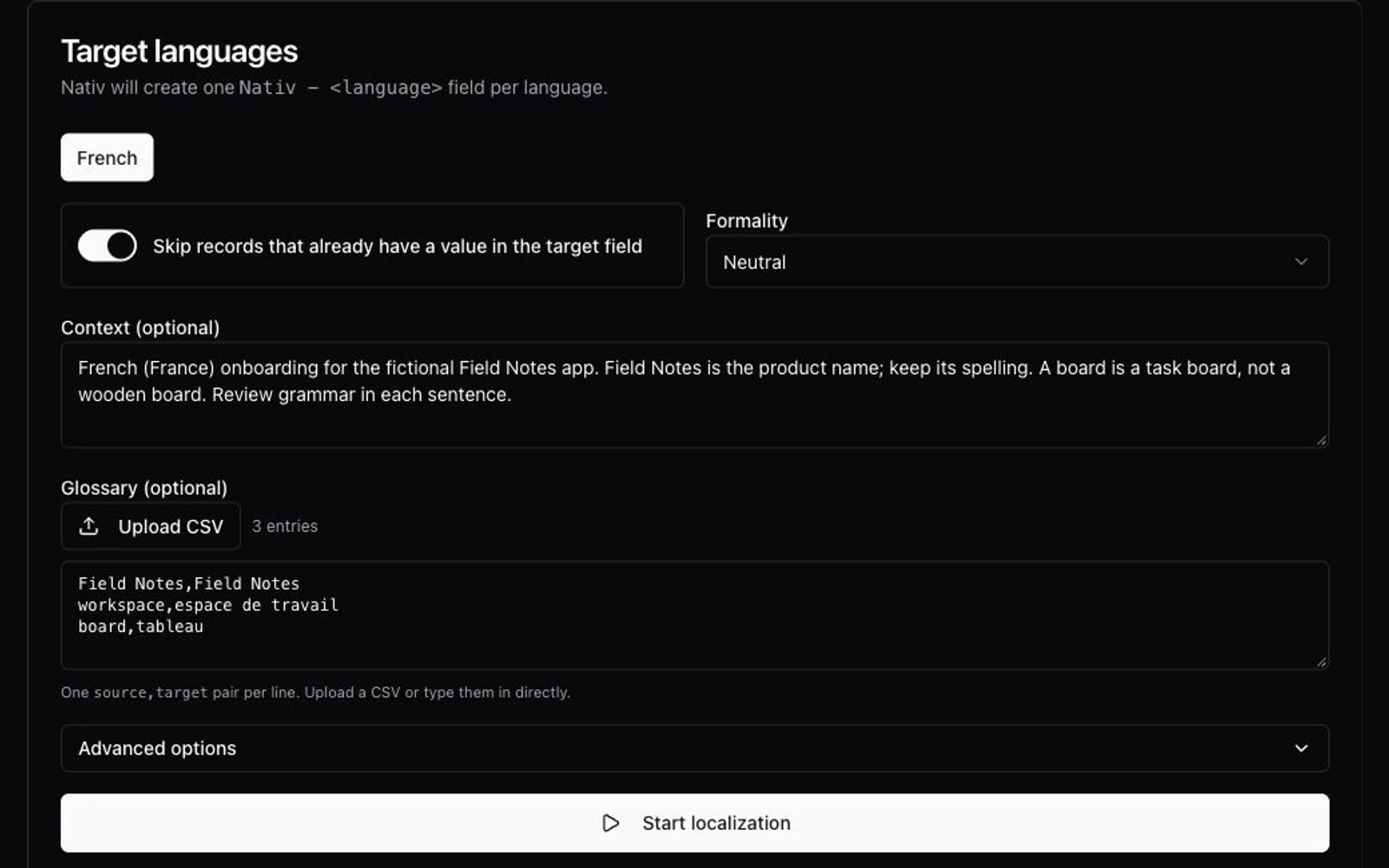
How to create a translation glossary, with a CSV template
Build a useful translation glossary from existing copy, define term meanings and locale rules, then test it in Nativ’s dashboard or MCP workflow.