How to subtitle a video with on-screen text but no speech
A silent promo still has a script. Recover the words and their place in the edit, then translate a timed file instead of waiting for a speech recogniser to hear them.
For a video with on-screen text and no speech, write or recover the source text, time it against the edit, and translate that timed subtitle file. Speech recognition cannot supply a script that exists only in the picture. If the delivery needs WebVTT, translate a supported source format first, convert the reviewed file, then test it in the destination player.
This is the problem in an After Effects editor’s question: a short promo needed thirteen language versions of a VTT file, but the available workflows seemed to expect spoken words. In a separate videography discussion, a creator wanted multilingual information over footage with almost no speech. A useful reply separates authoring the first timed track from translating it into additional languages.
This guide is written by Nativ and checked on 3 November 2026. The exercise uses an existing public Nativ video, newly authored English summaries and supplied French draft copy. We exercised the current SRT parser and exporter offline, converted the files and checked the browser preview. No paid translation, live account upload or qualified French-language review was run.
Decide what the audience needs to read
There are three different jobs:
- Translate visible copy: preserve the meaning of the words in the artwork, using a separate subtitle track when the picture will remain unchanged.
- Add information over silent footage: write an editorial script for the facts or actions the viewer needs. There is no missing speech transcript to discover.
- Localise the artwork itself: replace the words inside the design or animation. A subtitle file adds a text layer in the player; it does not replace baked-in text or editable After Effects layers.
Use the After Effects workflow for editable project work, or the image guide for text baked into a flat image. Choose the output before choosing a transcription tool.
For accessibility, a translated timed track is only part of the decision. W3C’s video-only guidance describes an equivalent text alternative or audio track for prerecorded video-only content. If your video also contains speech, music or meaningful sounds, include those in the appropriate caption workflow. Do not label a short visual summary as a complete accessibility assessment.
Build the first timed source file
Start from the original script or editable text layers when available. If the only source is a rendered video, inspect its frames and check any OCR result against the picture. OCR can help recover words; deciding when each message starts, ends and remains readable is a separate task. We have not verified an automatic Nativ frame-text-to-timed-caption workflow.
Work against the version of the edit you will deliver:
- Collect every message the viewer needs, including qualifiers, names and text on end cards.
- Mark when each message becomes visible and when it stops applying. Allow for animated entrances and exits.
- Split messages into cues the viewer can read comfortably while watching the scene. Shorten or extend the edit deliberately rather than dropping meaning.
- Save a source SRT and play it with the video before translating it. A later recut can invalidate all language tracks.
An SRT cue contains an index, an interval and its text:
1
00:00:00,500 --> 00:00:09,500
A how-to card appears
in several languages.
The comma separates milliseconds. This cue starts half a second into the file and ends at 9.5 seconds. It is an authored visual summary, not a line detected in an audio track.
Try the three-cue exercise
The existing demo below has no audio stream. Its three groups show how-to artwork, product-benefit artwork, and dos-and-don’ts artwork in multiple language versions. We timed one English summary to each group. These summaries explain the demonstration; they do not transcribe every word or translate the product instructions.
A black band added below the original picture gives the optional timed text its own space. The video starts only when you play it. Use the player’s subtitle menu to select English visual guide or French draft.
Download the preview video, English SRT, French draft SRT, English WebVTT and French draft WebVTT. The exercise notes and text description record the source, timing and limits.
The three intervals are 0.5–9.5, 10.5–16.5 and 18.0–25.8 seconds. In our offline exercise, the actual SRT parser read three cues and the exporter retained those intervals after inserting the supplied French text. That establishes the file-handling result for this fixture, not the quality of an automated translation.
Translate the SRT without asking for transcription
Nativ MCP’s released localize_subtitles tool accepts a subtitle source separately from a video input. For this task, start with the SRT. The hosted connection needs an accessible HTTPS URL; the local stdio workflow can use a local file path.
For a first French pass, use these localize_subtitles arguments:
{
  "target_language_codes": "fr",
  "subtitle_path": "https://www.usenativ.com/journal/fixtures/silent-video/source-en.srt",
  "source_language_code": "en",
  "context": "French visual summaries for a silent localisation demo. Preserve the three cue intervals. These describe artwork groups, not speech or product-use instructions."
}
There is no video_path in this example because the timed source already supplies the text. Start with one target language and check the source, context and expected credit use before execution.
Review the returned language and downloaded SRT with the video. In the parser we exercised, source lines within a cue are joined for translation. The output uses the supplied target text’s line breaks, so the source’s two-line wrapping is not a guarantee about the final layout. Check the exported file’s actual wrapping and readability.
For saved-file review and regeneration, continue with the subtitle review and export guide. Keep its saved-file flow separate from this in-memory example.
Convert the reviewed file when delivery needs VTT
Nativ’s subtitle path here uses SRT or ITT. The downloadable WebVTT examples were converted separately with FFmpeg; they are not a claimed Nativ VTT export.
For a plain SRT conversion, with FFmpeg installed:
ffmpeg -i reviewed-fr.srt reviewed-fr.vttWe ran that conversion on the fixture files and let the browser use its normal subtitle placement in the padded preview. A fixed cue position can conflict with playback controls on a small screen. Another player may handle placement and styling differently; do not treat a format conversion as a visual approval.
For YouTube, the official upload instructions distinguish files with timing from automatic synchronisation. Upload the reviewed timed file using the matching language. Do not depend on speech-based auto-sync to establish timing for a silent film.
Check the final viewing experience
Play the exact delivery file with its subtitle track, including on a small screen. Confirm that cues appear with the right scene, accents survive, all messages are present and text can be read before it disappears. Check that captions do not cover the same words or actions they are supposed to explain.
If translated copy needs more time, shorten it with the language reviewer while preserving meaning, or extend the shot and update every affected track. If the picture must change languages too, return to the editable artwork or motion project. Deliver the video, the reviewed language files and the version of the edit they match together.
Product references
How to dub a video and keep the background music
Keep music and effects under a translated voice: choose the right source tracks, carry Nativ’s background stem through the workflow, and check the final mix.
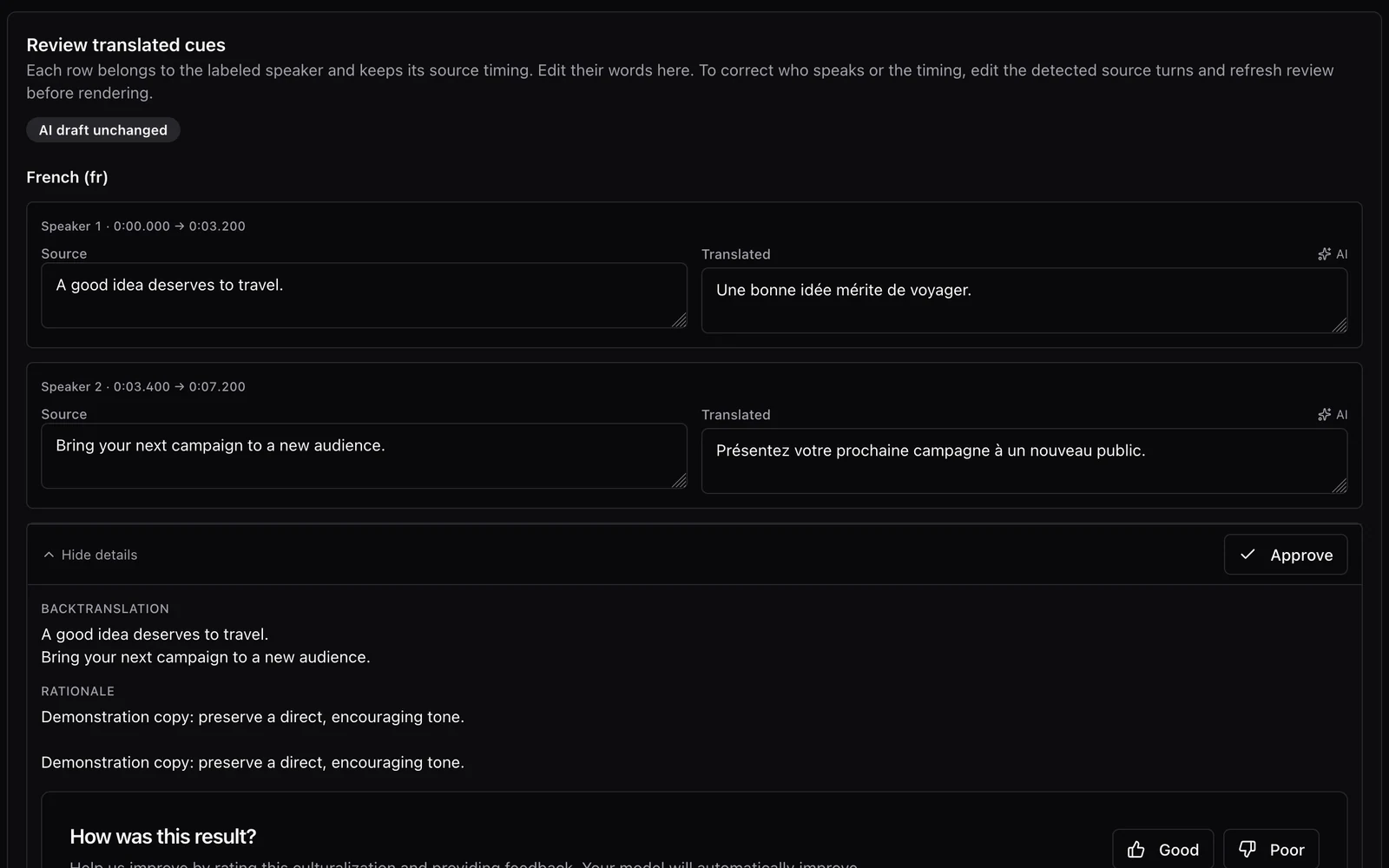
A conversation needs more than one translated voice.
Prepare speaker-aware dubbing with Nativ: inspect the transcript, assign voices, review translated turns and timing, and listen to the finished mix.