How to dub a video and keep the background music
Replacing the soundtrack is easy. Replacing only the dialogue takes a different input: the sound of the scene without the voice you want to change.
To keep music and sound effects under a new-language voice, mix the new dialogue with a background track that does not contain the old dialogue. Use the original editor’s separate tracks when available. With only a finished video, prepare and inspect a separated background bed before using it. Lowering the entire original soundtrack is a different result: the old voice is still there, just quieter.
A VideoEditing question describes the practical failure well. An editor replaced dialogue and found the scene sounded empty because the effects had disappeared too. Replies distinguish receiving separate production tracks from trying to recover them from a finished mix. That older discussion identifies a production problem, not a measured comparison of today’s dubbing tools.
This guide explains the handoff and Nativ’s documented controls. The listening exercise below uses original mathematical tones to make the routing obvious. It is not a speech-separation test or a newly generated Nativ dub.
Choose the background source before generating the voice
Ask the editor for a music and effects (M&E) track, or aligned music, ambience and effects stems. Also keep the original full mix as a reference. Those files should share the picture’s start point and include the pauses where no one speaks.
Professional delivery workflows treat those assets deliberately. For example, Netflix’s dubbing guidelines distinguish supplied M&E from dialogue references and ask mixers to preserve the sound design. That is an example of a structured handoff, not a claim that this guide satisfies Netflix’s delivery requirements.
If you only have an MP4, inspect the recovered background on its own. Listen through the dialogue intervals as well as the gaps. Music heard clearly in the opening does not establish that a door slam underneath a sentence survived the separation.
Keep three different deliverables distinct:
- Replacement dubbing: new dialogue over music and effects, with the original dialogue removed from the background.
- Voice-over: the new voice sits over a quieter original mix. Hearing the original speaker may be intentional here.
- Subtitles: the original soundtrack stays intact; the translated text has its own timing and readability review.
Choose the one your audience needs before approving a generation job.
Hear what changes when the wrong track is used
These four-second clips use a low two-note bed, two soft chimes and pulsed tones standing in for the old and new dialogue. They contain no human speech. Play one at a time at a comfortable level; nothing autoplays.
The files were checked for duration, clipping and the presence of the intended tone components. Their ingredients were separate from the start. They demonstrate which signals enter a mix; they cannot tell you how well an algorithm will recover background from a real recording. They are not loudness-matched voice-quality comparisons.
Carry the background through the Nativ workflow
Use the full Nativ MCP connection or its JSON tools adapter for this workflow. The separate seven-tool OAuth connection does not expose these audio operations. Start with the connection diagnostic and inspect account limits with get_audio_capabilities.
The public audio workflow reference documents the handoff:
- Prepare the source with background retention enabled. Call
transcribe_audio_detailedwithkeep_background_music: true. Hosted input needs an accessible HTTPS media URL; local stdio can use a local path. - Keep the returned identifiers with that source. Retain
stem_id, the transcript, timed segments and actual processed duration. For a video, retain itsvideo_idtoo. A flag on a later request cannot recreate a missing background stem. - Review the script and choose the voice. Check names, missing words, speaker turns and timing before synthesis. Use
translate_dialoguefor related turns andlist_voicesto inspect available voices. Multi-speaker dubbing has its own voice-assignment considerations. - Pass the background into synthesis. Send the reviewed segments to
synthesize_audio_advancedwithkeep_background_music: trueand the returnedstem_id. Pass the sourcevideo_idwhen requesting the video result. Synthesis uses account credits;keep_same_lengthis a separate timing choice, not a music-preservation setting. - Open the actual output. Hosted results use expiring download links; stdio writes files. Check the generated audio and any video artifact rather than treating a successful tool response as final approval.
This is a documentation and released-code review, not a report of a paid generation run. Nativ’s reviewed synthesis path requires the background identifier when retention is requested. If that identifier is missing, return to source preparation with the option enabled instead of inventing an ID or repeatedly retrying synthesis.
Mix a clean bed separately when you have the original stems
If your editor already supplied a clean background, keep it in the editing session and place the reviewed target voice against the same picture. Do not assume that Nativ’s stem_id field accepts an arbitrary WAV path: it identifies the background returned by its source-preparation step.
For a reproducible mixing exercise, download the bed, replacement marker and instructions. With FFmpeg installed, run this in their folder:
ffmpeg -n -i bed.wav -i new-marker.wav \
  -filter_complex "amix=inputs=2:duration=first:normalize=0" \
  -c:a pcm_s16le mixed-by-ffmpeg.wav
We ran this command on the supplied files. It produced a four-second mix matching the background-plus-replacement example within one 16-bit sample step. That small difference is rounding, not a translation-quality result.
FFmpeg’s amix reference explains the duration and normalization controls. Here, both ingredients already start together and last four seconds; their levels leave room for summation. These settings are not a production loudness preset. The command mixes tracks that already exist. It does not separate the original voice from an MP4.
The original exercise generator uses Python’s standard library if you want to inspect or reproduce the inputs.
For an externally mixed soundtrack, Nativ’s remux_video attaches a prepared audio file to a registered source video_id. Its audio_path is an HTTPS audio URL in hosted mode or a local path in stdio. That step does not remove dialogue or mix the old soundtrack into the new one; prepare and review the audio first.
Balance the new voice, then check the whole film
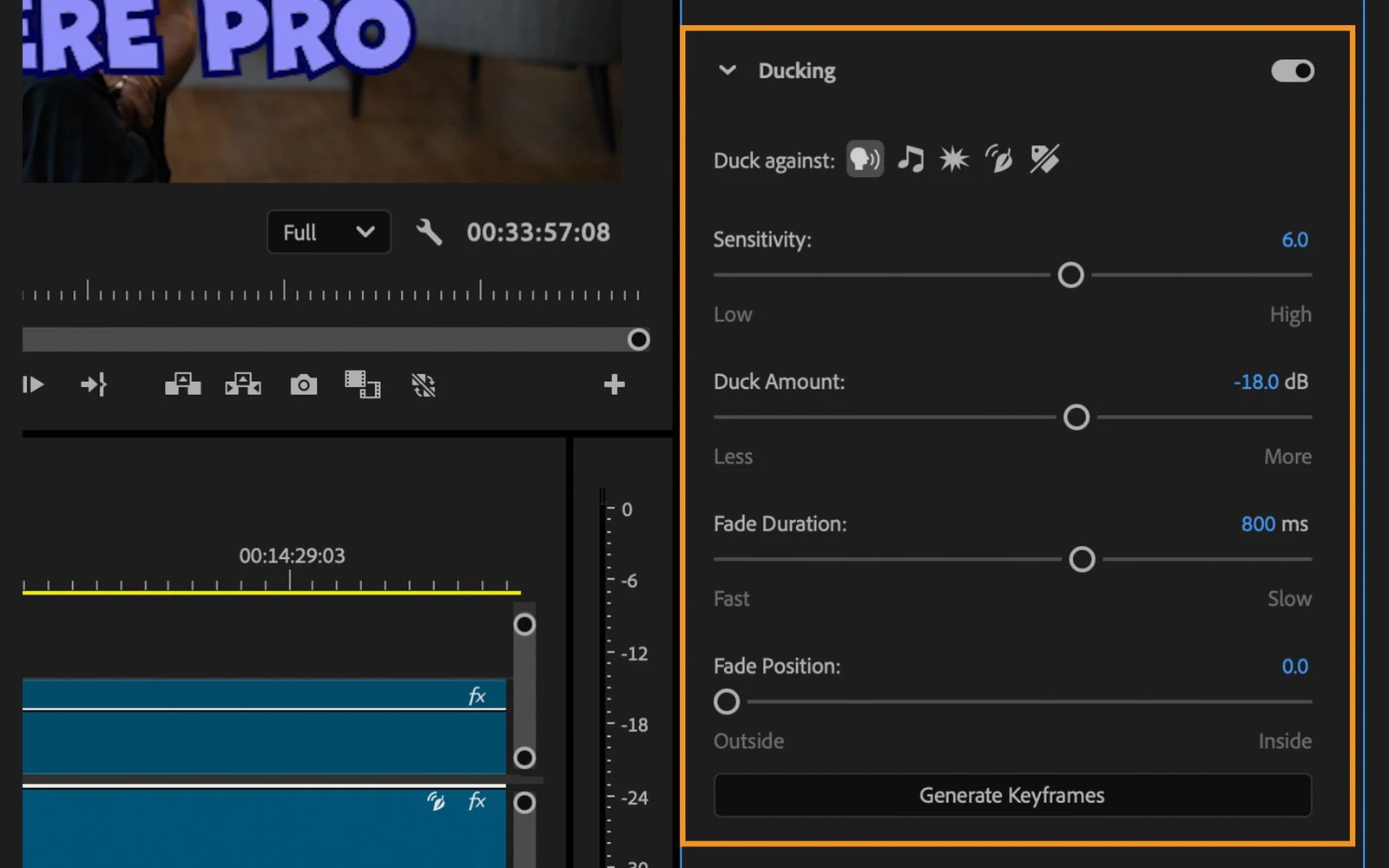
Ducking lowers a background track while dialogue plays. It is a mixing decision, not speech removal. Adobe’s Premiere guide describes tagging audio types, choosing what to duck against and adjusting the generated keyframes. If you use that workflow, base the timing on the reviewed new dialogue, which may occupy different intervals from the original.
Before approving the film, listen for:
- Old words under new words. Residual original dialogue belongs in the voice-over decision, not an unnoticed replacement-dub result.
- Lost details during speech. Check impacts, room sound, laughter and musical accents at the moments the original voice overlaps them.
- Uneven background. Listen across speech boundaries for sudden level changes or audible processing artifacts.
- Timing and endings. Confirm that the last word, final effect and music tail survive in the exported video, including any duration limit applied during processing.
Keep the original, reviewed script and approved final mix together. On-screen lettering and graphics still need a separate visual-localisation pass; remuxing audio does not translate them. Use the editable After Effects workflow when those layers are part of the job, and review the final film with sound and picture together.
Product references

How to subtitle a video with on-screen text but no speech
Create timed text for a silent promo, translate the SRT, convert to WebVTT and check it in the player, without relying on speech recognition.
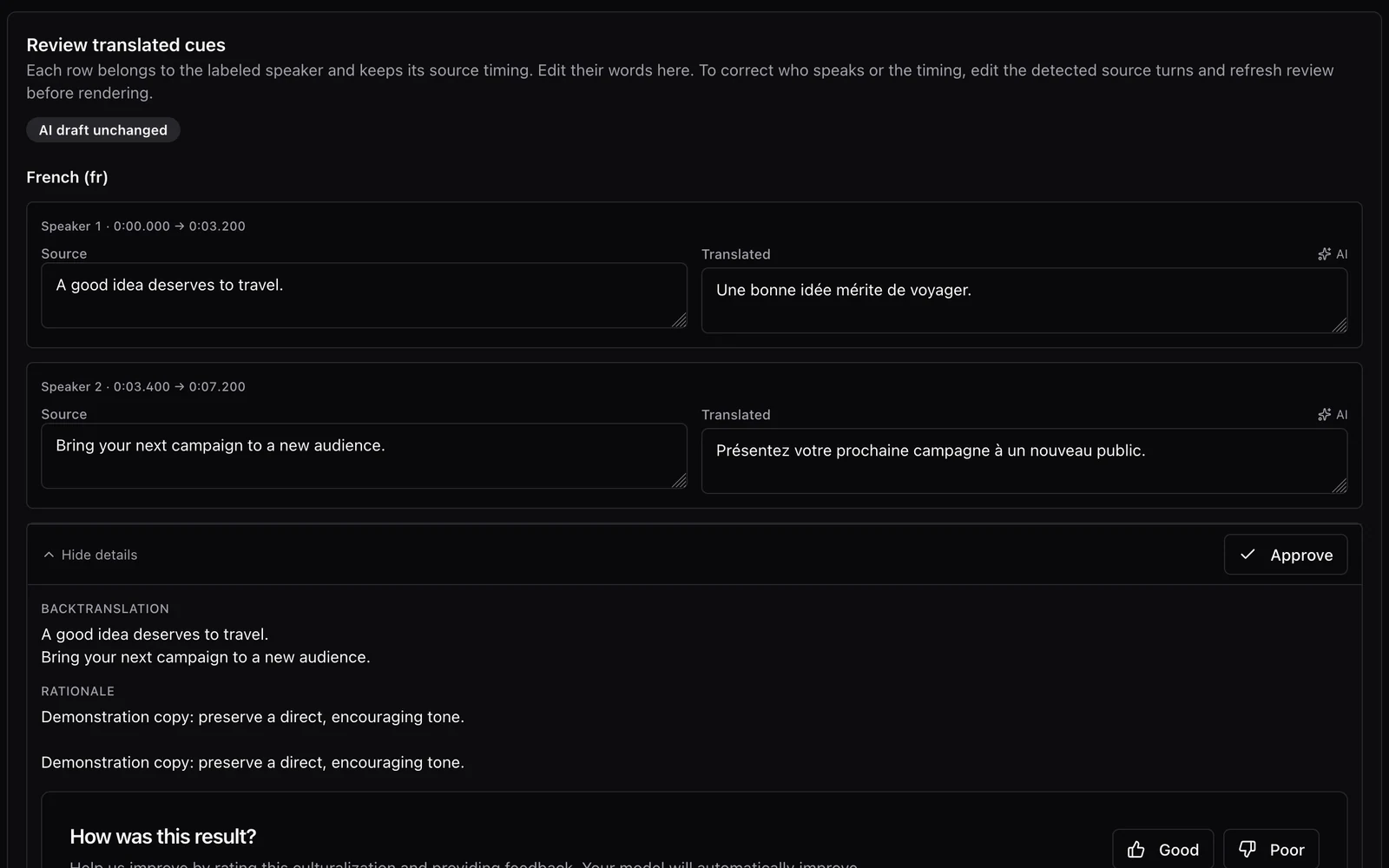
A conversation needs more than one translated voice.
Prepare speaker-aware dubbing with Nativ: inspect the transcript, assign voices, review translated turns and timing, and listen to the finished mix.