How to localize App Store screenshots
A French description can sit beside an English screenshot. Treat the words in the listing, the app interface and the exported images as three connected pieces of work.
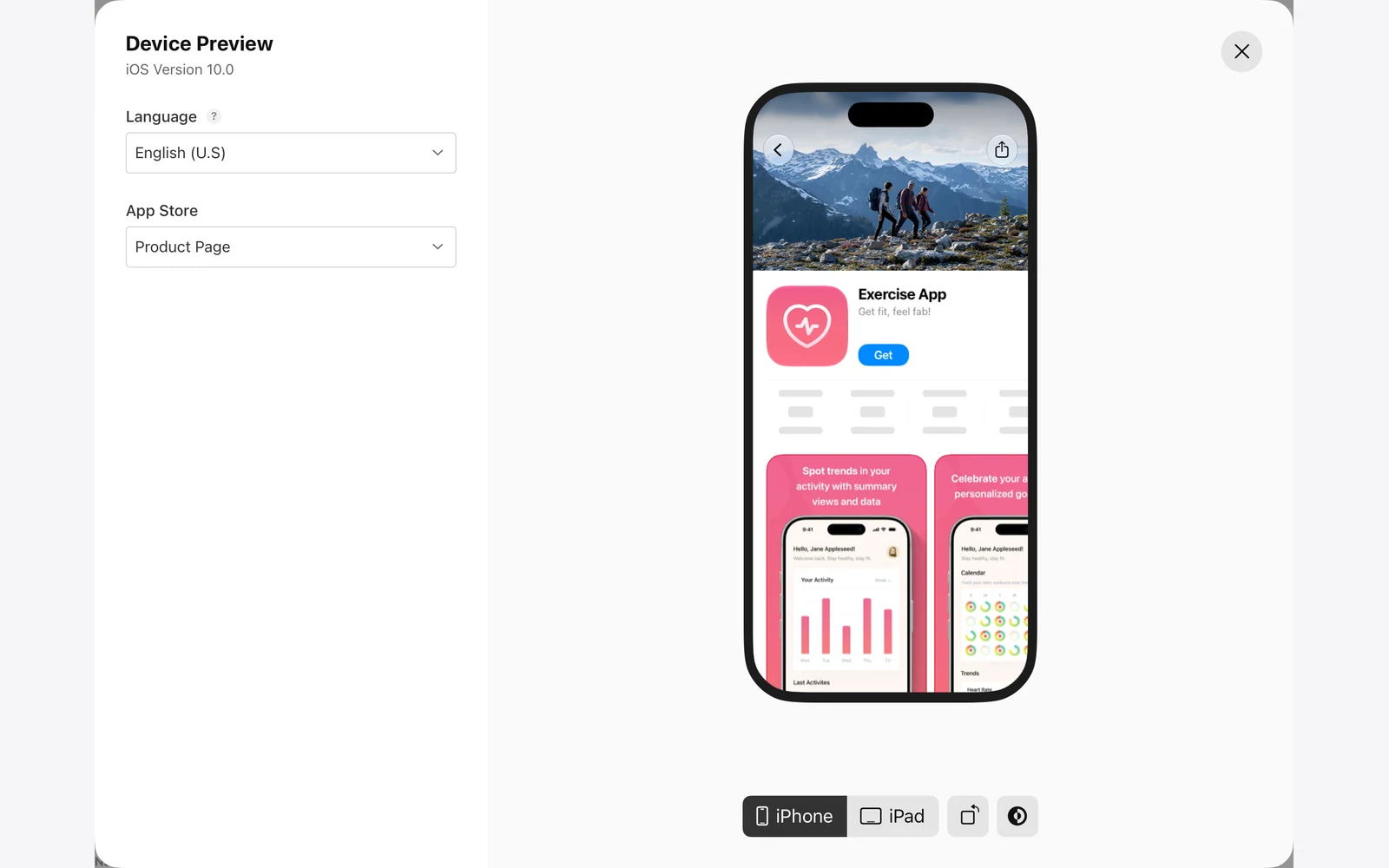
Capture your app in the target language, translate the editable captions around those captures, then export and check each language’s image set before assigning it in App Store Connect. Adding a localized name or description does not translate words already inside a screenshot. Apple says new-language screenshots initially default to the primary language’s assets, so a populated screenshot well can still contain the English set.
That distinction answers a real developer question about English screenshots beside localized metadata. Another Figma-based workflow question clarifies that the translations already exist: the developer needs a repeatable way to place them into the designs. The jobs are related, but buying another sentence translation does not finish either one.
This guide combines Apple’s current documentation with Nativ’s released caption-translation interface. We tested the downloadable inventory checker locally. We did not upload an app or run a paid translation for this article.
Capture the product that people will actually receive
Separate the in-app interface from the marketing caption around it. If your app supports French, capture the relevant screen from the French build or language setting using fictional account data. Keep its app version and screen identifier with the image.
Translate the surrounding headline in an editable design layer. Replacing a bitmap of the interface with plausible French controls can misrepresent the product if those controls do not exist in the shipping app. Apple’s review guidelines call for screenshots that show the app in use and accurately reflect its experience.
Keep the caption’s claim equally specific. A screenshot showing route planning should not become a promise of offline navigation unless that feature exists. Have the person responsible for the app confirm those claims alongside the language reviewer.
Give captions a brief and a stable place in the design
Keep a source frame and a separate version for each locale in your design file. Identify each card by its purpose, such as 01-overview or 02-route-detail, rather than by its current headline. Wording can change without changing which screen the card represents.
For a fictional route-planning app, these are example arguments to Nativ’s translate tool through the full MCP connection:
{
  "text": "Plan your next route",
  "target_language": "French",
  "target_language_code": "fr",
  "context": "French for France. Short editable caption above a real route-planning app screenshot. Describe planning, not navigation features the app does not offer.",
  "max_characters": 32
}
The character budget is an example editorial constraint, not an Apple caption limit or a guarantee of visual fit. Review the wording in the frame at its intended display size. Keep approved terminology consistent with the actual app interface.
Use the Figma workflow when your captions are native text nodes, and inspect longer lines, font coverage and emphasis after replacing them. For a Photoshop template with reviewed copy in a table, the CSV and Data Sets exercise demonstrates that placement step. Preserve the real in-app capture while editing its surrounding presentation.
Export an identified set for each device profile
Choose the intended device group and orientation from Apple’s current screenshot specifications. Do not stretch an unrelated image to a phone-shaped canvas and assume the result is suitable. Apple also excludes alpha channels and transparency: a PNG can look opaque while still carrying an alpha channel.
Keep an export plan that connects four things: locale, device profile, card position and filename. For example:
en-US / chosen iPhone portrait profile / 01-overview / en-US/01-overview.png
en-US / chosen iPhone portrait profile / 02-detail   / en-US/02-detail.png
fr-FR / chosen iPhone portrait profile / 01-overview / fr-FR/01-overview.png
fr-FR / chosen iPhone portrait profile / 02-detail   / fr-FR/02-detail.png
Use a separate plan for an iPad profile or another orientation. The intended set comes from your release plan; a directory containing four files cannot establish that every required language and card is present.
Run a small local preflight before uploading
Download the PNG inventory checker and exercise, extract it, and run these commands in that folder with Python 3.9 or later:
python3 check_exports.py broken-manifest.json
python3 check_exports.py fixed-manifest.json
The first command deliberately exits with an error. The second passes. All images in the exercise are plain colour fields used to test file properties, not app screenshots or assets to submit to Apple.
We ran both cases. The broken inventory reports three concrete problems:
- The English detail image is 1200 × 800 instead of the example profile’s 1290 × 2796.
- The French overview image carries an alpha channel, even though its pixels are fully opaque.
- The French detail card is missing.
The fixed inventory contains four correctly sized RGB PNGs. The checker also flags duplicate locale-and-slot entries and warns about identical file bytes, which can help spot accidental reuse of one export. Identical images can be intentional, so that warning needs inspection.
Adapt the manifest to your own expected set and current device specification. The included dimensions are one example profile, not a universal requirement. The read-only script checks PNG metadata, chunk checksums, dimensions, transparency and declared coverage. It prints an ordered checklist; it does not upload anything or recognize the language in the pixels. It does not decode image data, so open every final image too. See the scope and instructions before using it on your files.
Check each locale in its destination
Follow Apple’s asset-management workflow. Choose the app version and language, select the appropriate device tab, then place the reviewed images. Media Manager provides controls for device sizes, localizations and ordering.
Compare the uploaded sequence with your export plan. Confirm the opening card, every caption, the in-app language and any locale-specific claims. Check the store preview at a readable size; a language label or successful upload does not establish that the pictures are correct.
Nativ handles the caption-language part of this workflow. Capturing the shipping app and managing its App Store placements remain separate steps. Keep the source frame, approved copy, capture version and final filenames together so the next UI change has a clear list of affected cards.
Measure any effect on your own listing after publication. The forum replies include conflicting anecdotes; they do not establish a conversion lift for your app. A correctly localized and correctly assigned set is the practical result to verify first.
Product references
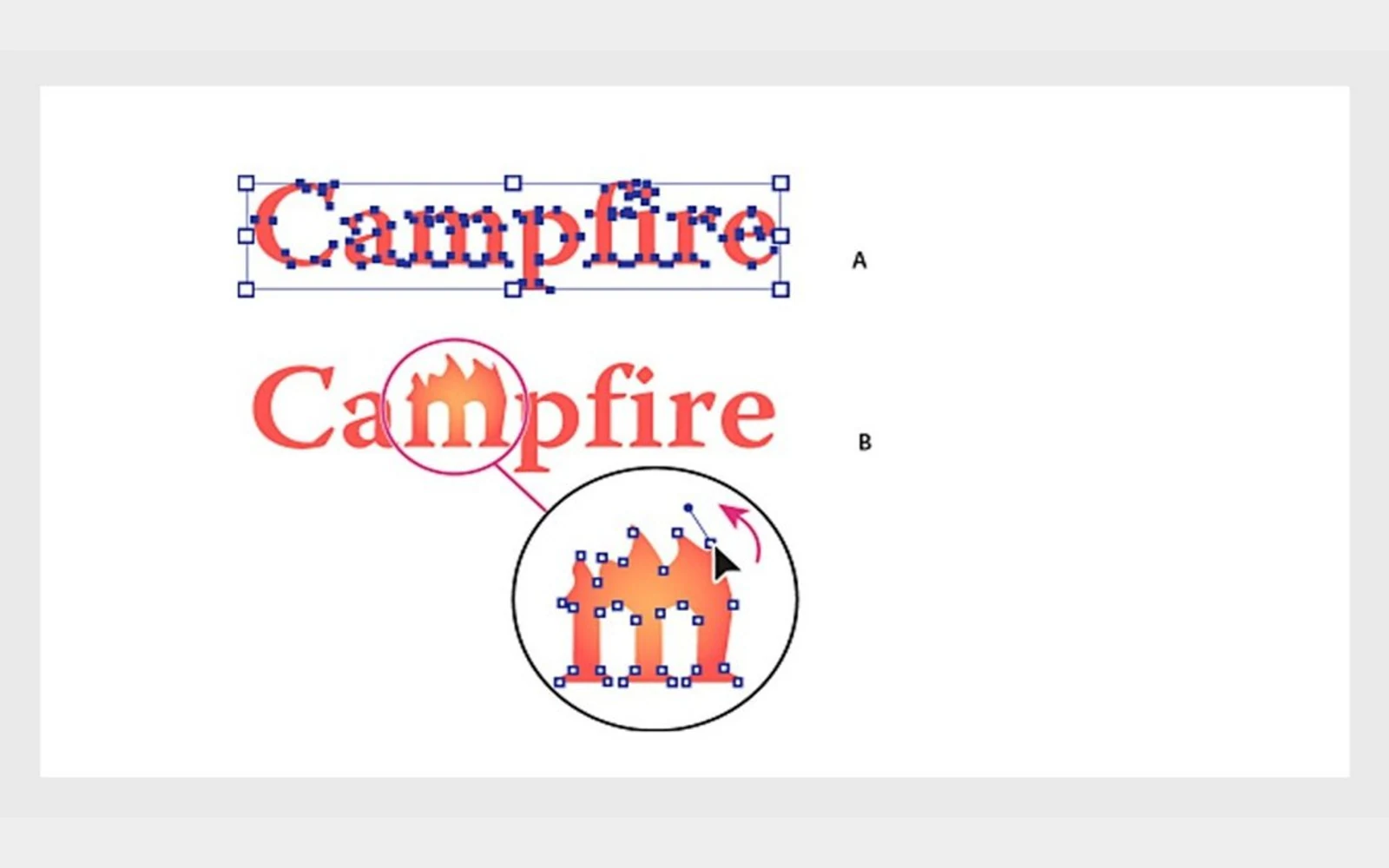
How to translate outlined text in an Illustrator file
Separate editable type from vector outlines, recover approved source copy, and rebuild a language version without mistaking shapes for translatable text.
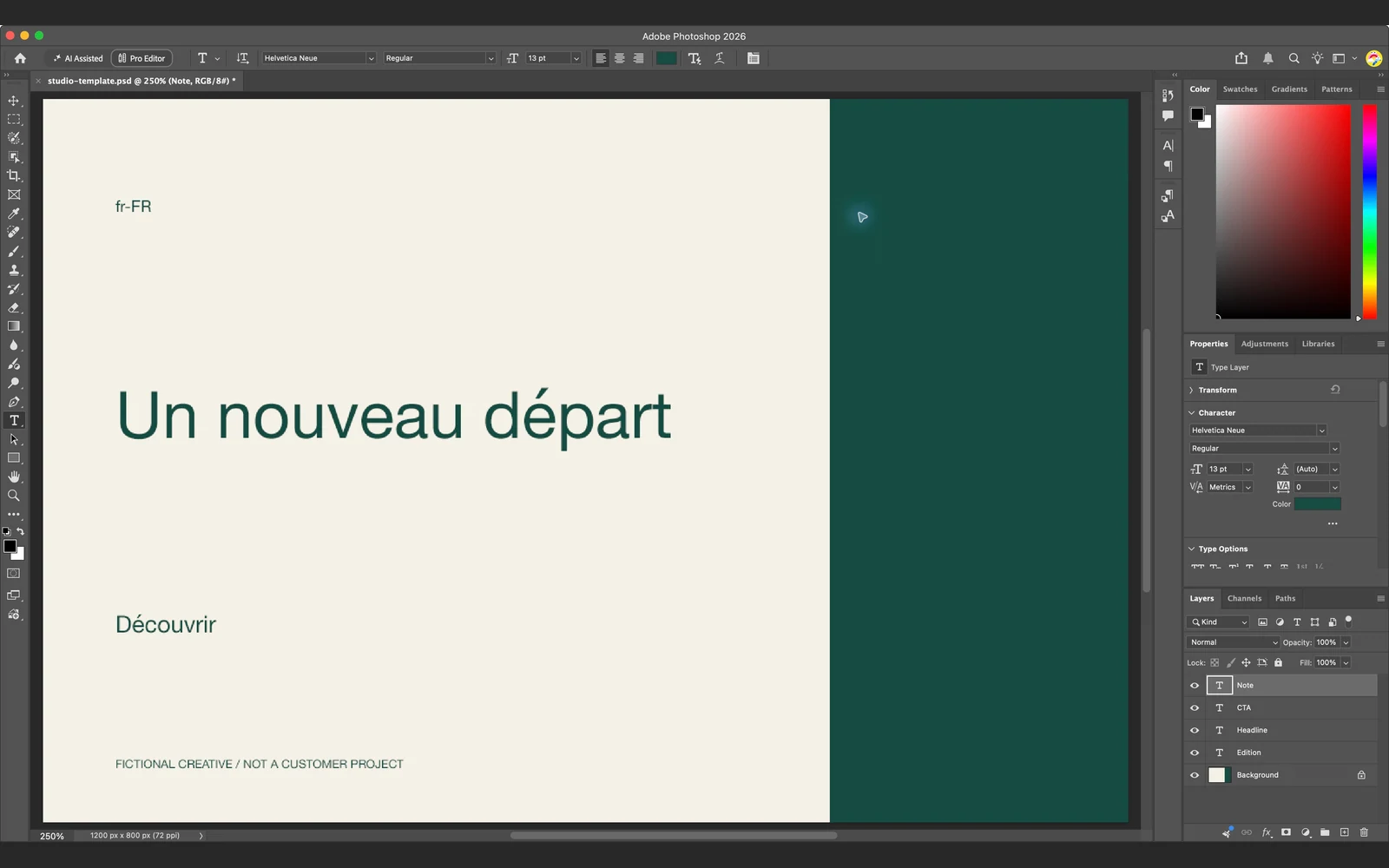
How to create Photoshop language versions from a CSV
Turn reviewed translations into editable Photoshop versions with Variables and Data Sets. Try a tested three-language PSD and CSV, then check the real exports.