How to fix subtitles that are too fast
A translation can fit inside the frame and still disappear before the viewer finishes reading. The constraint is the time available, not just the width of the line.
To fix subtitles that are too fast to read, measure each cue’s characters per second, choose the target language and delivery brief’s limit, then review the wording or the timing. A new line can make a phrase easier to follow, but it gives the viewer no extra time. Extending the subtitle is only an option when the speech, next cue and picture allow it.
This is a real production question. In a subtitling discussion on Reddit, a translator asked whether AI could shorten text to a CPS limit. Replies described meaning lost during shortening and the need to review across cues. Separately, an Adobe Community request asked how to check reading speed alongside line length. Both questions need a rate check and a reviewer’s judgement.
Written by Nativ; checked on 9 November 2026. We built and tested the downloadable arithmetic exercise below with manually written English copy. We reviewed the released Nativ interfaces and current delivery documentation. We did not run a paid translation, test a customer file or certify a subtitle delivery.
1. Separate reading speed from line length
Characters per line, or CPL, measures the length of a displayed line. Characters per second, or CPS, measures how much text the viewer must process in the time the cue is visible:
CPS = counted characters / cue duration in secondsIn our fictional software tutorial, the first draft says:
00:00:01,000 --> 00:00:03,000
Please remember to save all of your changes before closing this window.
That is 71 characters over two seconds: 35.5 CPS, using the exercise’s counting convention. Wrapping the same sentence over two lines does not remove its words or increase its duration. A translation-memory match or an approval checkbox does not establish that viewers can read it in time either.
Line length, line grouping, reading speed and synchronisation need separate checks. A short caption can still flash past too quickly; a slower caption can still break at an awkward phrase.
2. Get the limit from the delivery brief
There is no single CPS limit for every language, audience and platform. For example, Netflix’s current U.S. English guide lists ceilings of 20 CPS for adult programmes and 17 for children’s programmes. Its subtitle and SDH sections also have different editorial requirements.
Prime Video’s general guide gives 17 CPS for adults and 13 for children, with further language-specific guidance and conditions for exceptions. These examples show why “under 20” is not a universal delivery or accessibility pass.
Before editing, record the target locale, audience, subtitle type, client limit and counting convention. Keep any required speaker identification, sound information and meaning. Do not shorten SDH using the assumptions for a different subtitle track.
3. Try the offline SRT exercise
Download the exercise ZIP. It contains two basic SRT files, the checker, the resulting CSV reports and a short README. You can also inspect the checker source, the original draft and the edited draft separately.
With Python 3, run these commands inside the extracted folder:
python3 check_cps.py before.srt --max-cps 20 > before-report.csv
python3 check_cps.py reviewed.srt --max-cps 20 > reviewed-report.csv
The selected 20 CPS is an exercise setting, not an automatic recommendation for your project. The checker runs locally, uses no Nativ credentials, makes no network request and never rewrites the input subtitle. Read it before running it with a private file.
Its first cue changes from 35.5 to 16.5 CPS when our manually edited copy becomes:
00:00:01,000 --> 00:00:03,000
Save your changes
before closing.
The timings are unchanged. We removed a courtesy phrase and redundant wording in an example where the window is already clear on screen. This is an English editing exercise, not generated Nativ output or proof that the same shortening works in another language.
The report also shows duration, counted characters, longest line and the mathematical duration at the chosen rate. It labels a cue WITHIN_SELECTED_CPS, not “approved” or “good translation”.
Counting limits: the helper normalises Unicode to NFC, counts code points including spaces and punctuation, treats line breaks as one separating space, and strips basic SRT formatting tags. Delivery tools may count differently. Emoji, complex scripts, advanced styling and delivery-specific rules need the appropriate validator. Invalid or overlapping timings stop this helper rather than produce a clean report.
4. Shorten the wording without erasing the message
Work with a reviewer who can judge the target language in context. Show the source meaning, surrounding cues, delivery constraint and proposed shorter version together. Preserve names, quantities, negation and any qualification that changes the instruction.
Our second cue deliberately stays as:
This action cannot be undone.At 1.5 seconds, its 29 characters require 19.33 CPS. Removing “cannot” would make the line shorter and reverse its meaning. A lower rate is not a worthwhile result if the viewer receives the wrong instruction.
Run the reviewed file at a stricter setting:
python3 check_cps.py reviewed.srt --max-cps 17 > stricter-report.csvCues 2 and 3 now require review, even though every cue was within the selected 20 CPS setting. That difference is intentional. Passing one threshold does not make a file suitable for every brief.
Use translation review to organise decisions and reviewer questions. Backtranslation can expose a possible omission, but it cannot approve the target wording on its own.
5. Change timing only with the picture and audio open
For our original 71-character cue, a 20 CPS budget would require 3.55 seconds. Starting at one second would put its end at 4.55 seconds. The next cue starts at 3.2 seconds, so extending the first cue that far would overlap it.
The arithmetic identifies a constraint; it does not supply permission to move the next line, cross a cut or leave an instruction on screen after its context has changed. If wording cannot be reduced appropriately, review the timing and segmentation in a subtitle or video editor. Check the actual speech, speaker changes, shots and adjacent cues before accepting the change.
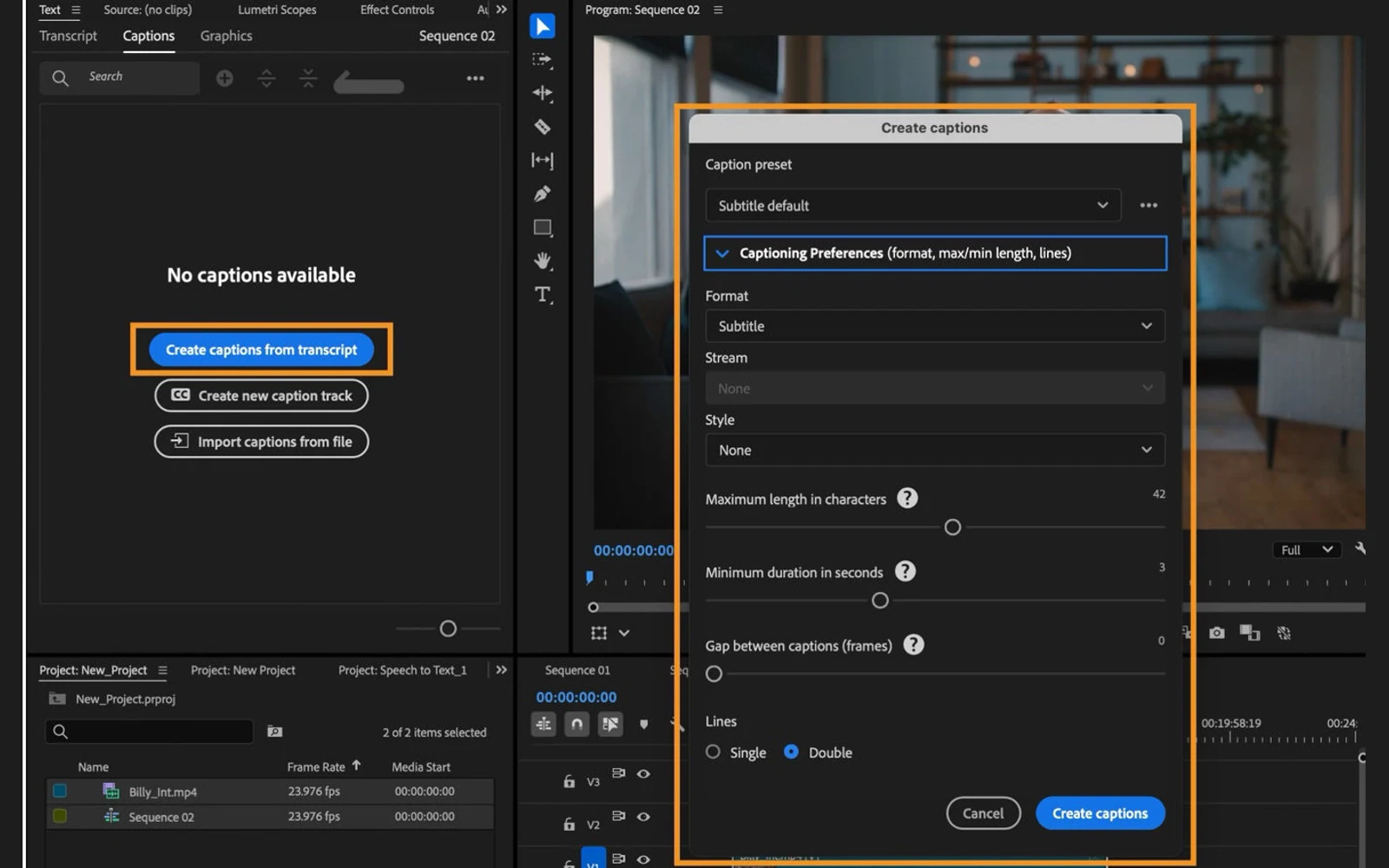
Adobe’s documented Create captions controls distinguish length, duration, gaps and lines. These are useful creation settings; choosing a character length alone is not a per-cue CPS assessment of a translated file.
6. Use Nativ for the language review, then check the delivered file
In Nativ, open the intended saved target subtitle in Files. Review the source and proposed wording, edit the translation and save the review. Treat that approval as a language decision, not a reading-speed certificate. Check the downloaded SRT separately against your brief. A translation-review row is not a reliable cue identifier: wording can repeat in several timed cues. Check every occurrence in the actual exported SRT.
For an agent-assisted workflow, the full Nativ MCP connection exposes get_subtitle_review, update_subtitle_review and export_subtitle. Read the returned rows before updating them; use their actual row_index values. Keep approval of shortened wording explicit. Export with regenerate=true to apply saved review edits to the subtitle, as explained in the saved-subtitle export guide.
Those review-update fields are for wording, approval and rationale. They are not start/end timing controls. If you retime externally, keep that revised file as the intended delivery asset; do not later overwrite it with an older Nativ export and assume your timing edits travelled with it.
Finally, recheck the exact exported file’s rate, cue coverage, synchronisation and line grouping, then play it in the destination player at its intended speed. A CSV report cannot see a busy frame, a speaker change or an unreadable placement. The deliverable is the subtitle file the audience can follow alongside the film.
Product references
Should you burn subtitles into a video or deliver an SRT?
Choose between separate subtitle files, selectable tracks and burned-in text, then verify the actual delivery rather than trusting your local preview.
How to dub a video and keep the background music
Keep music and effects under a translated voice: choose the right source tracks, carry Nativ’s background stem through the workflow, and check the final mix.