Should you burn subtitles into a video or deliver an SRT?
The subtitles appear on your laptop. That does not prove the next viewer will receive them. Decide what travels with the film before exporting.
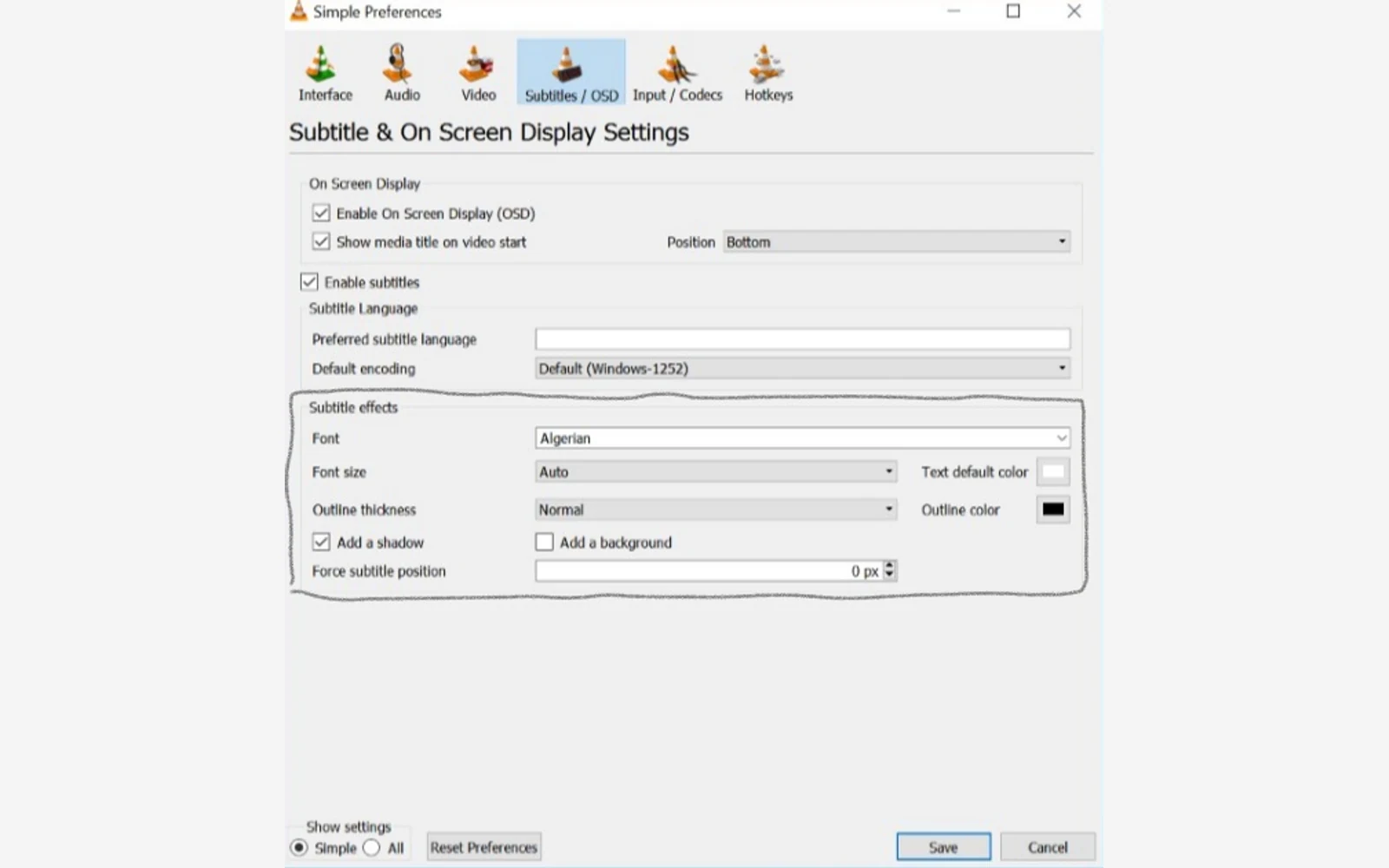
Deliver separate subtitles when the destination supports them and viewers need language choice. Burn text into a separate video rendition when the delivery specification requires it. Keep the clean video and reviewed subtitle source either way. A local playback preview does not establish what the final upload or recipient will show.
A filmmaker asking about festival subtitles received different recommendations about selectable tracks and burned-in copies. Replies describe handling problems and personal experience. They are not a universal festival specification: confirm the recipient’s current requirements before preparing the delivery.
Written by Nativ; documentation checked on 15 November 2026. We reviewed VideoLAN and HandBrake documentation and Nativ’s subtitle file workflow. We did not encode a film, test a festival upload or generate paid translations for this guide. The cover is an actual public documentation image.
Name the three different deliverables
A sidecar file, such as an SRT, lives alongside the video. It carries timed text, but the playback or publishing system still has to load it. Sending only the video leaves that separate file behind.
A selectable subtitle track travels inside a compatible media container. The player still needs to support the track and make it available. A file extension alone is insufficient evidence that every recipient can display every subtitle format.
Burned-in text becomes part of the picture. HandBrake describes this as permanent output, in contrast to soft subtitles that compatible playback software can enable or disable. The words cannot be switched off as a separate subtitle track. A correction therefore needs a new rendered rendition.
Choose the representation for the actual destination, rather than deciding that one method is always more professional. Language choice, correction workflow and the receiver’s playback system all matter.
Ask for the receiving specification first
Before exporting, write down the required video format, subtitle format, language and whether text must be selectable or visible without a subtitle control. Ask separately about an online review copy and a final screening deliverable. Do not assume that a successful review upload proves acceptance of the final package.
For an illustrative French campaign, the handoff might contain campaign-clean.mp4, campaign-fr.srt and a separately named captioned rendition. Those are fictional names, not a platform specification. The manifest should identify which item the recipient must use, its language, picture revision and approval status.
Keep captions and translated dialogue requirements explicit. Speaker identification and meaningful sound information may be needed for the intended accessibility use. Do not silently replace a required caption deliverable with dialogue-only translation.
Distinguish player display from exported pixels
VideoLAN documents loading an external subtitle file and selecting subtitle tracks. Its desktop preferences also control text rendering. These are playback controls, not proof that the subtitles have been written into the video file.
That distinction matters during review. Your player may show text because it loaded a nearby file or an existing track. The recipient may receive a different package or use another player.
Review a copy of the intended delivery in a separate folder containing only the files you plan to hand over. Explicitly select the intended track when testing selectable subtitles. For a burned-in rendition, disable selectable subtitle tracks and check that the required words remain visible. This isolates one source of confusion; it is not a complete media-conformance test.
Review the subtitle source before rendering
Nativ’s dashboard accepts SRT files for localisation and provides a subtitle review path. Start with the SRT translation and reviewed export workflow, then inspect the downloaded file against the picture revision used for delivery. The existence of an exported SRT does not prove that another video application has imported or rendered it.
Review meaning, cue timing and the final line breaks. Use the reading-speed guide when a translated cue is too dense. A shorter-looking source line is not a substitute for target-language approval.
HandBrake documents importing user-supplied SRT files through its subtitle controls and choosing output behaviour. Its support varies by subtitle type and output container. Check the current compatibility details for your chosen combination, and test a short representative section before processing the full film. We have not verified those settings in a native HandBrake run here.
Verify the result the viewer will receive
Inspect early, middle and late cues, plus fast cuts, bright backgrounds and on-screen graphics. Confirm accented characters or target-script glyphs, legibility, timing and whether a second subtitle source creates duplicated text. Check the actual output size and framing rather than only an editor’s preview.
If a platform transforms the upload, review its processed result. If a recipient handles playback, provide the exact approved package and request confirmation against their required setup. A successful local test answers a narrower question than a successful screening.
Keep the clean master, reviewed subtitle file and approved rendition linked to the same picture revision. That makes the next language or correction manageable, without turning the only editable subtitle source into pixels.
Product references
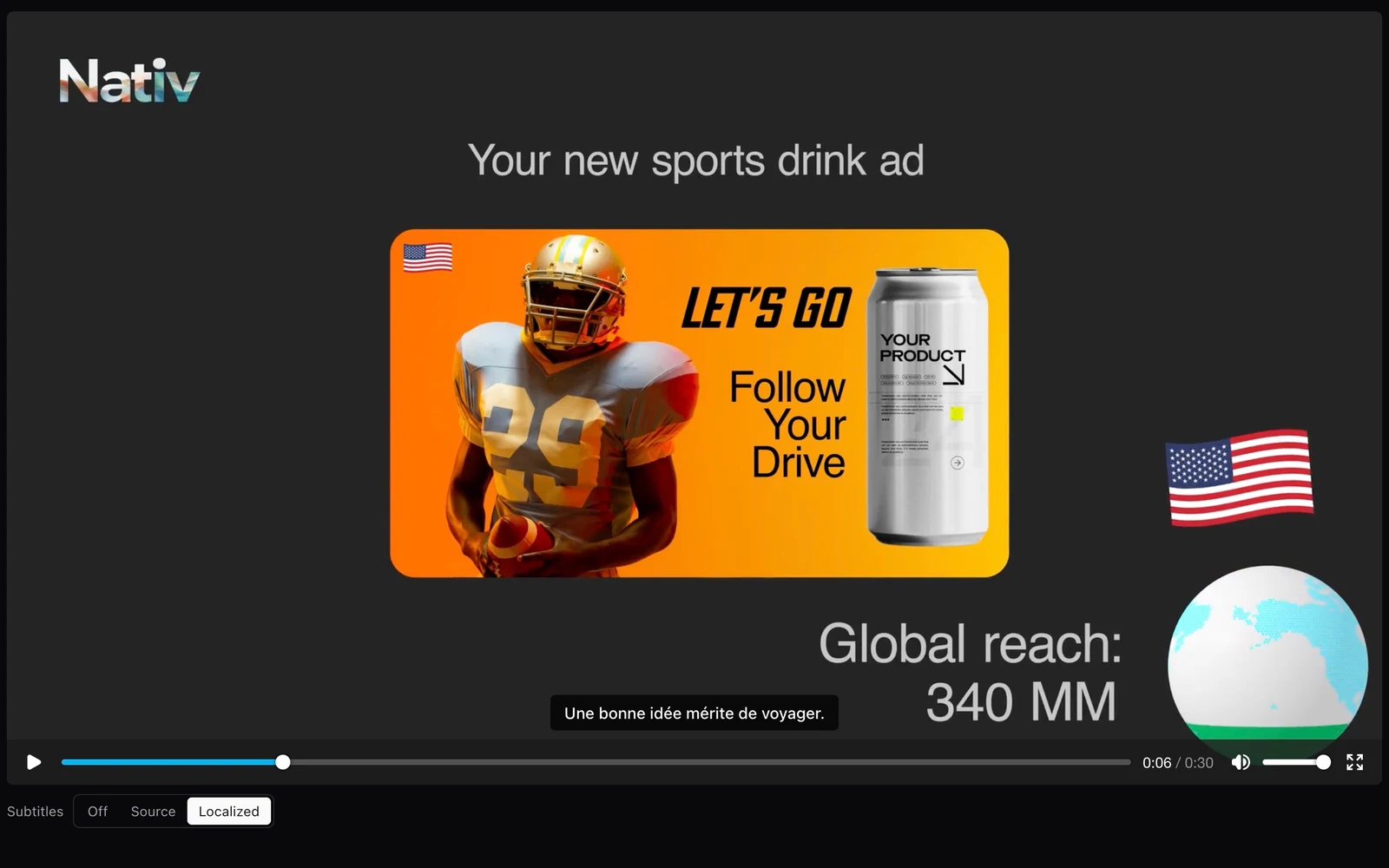
How to translate an SRT file and export reviewed subtitles
Translate SRT subtitle text, check cue numbers and timecodes, review the wording, and export a subtitle file that contains your saved changes.
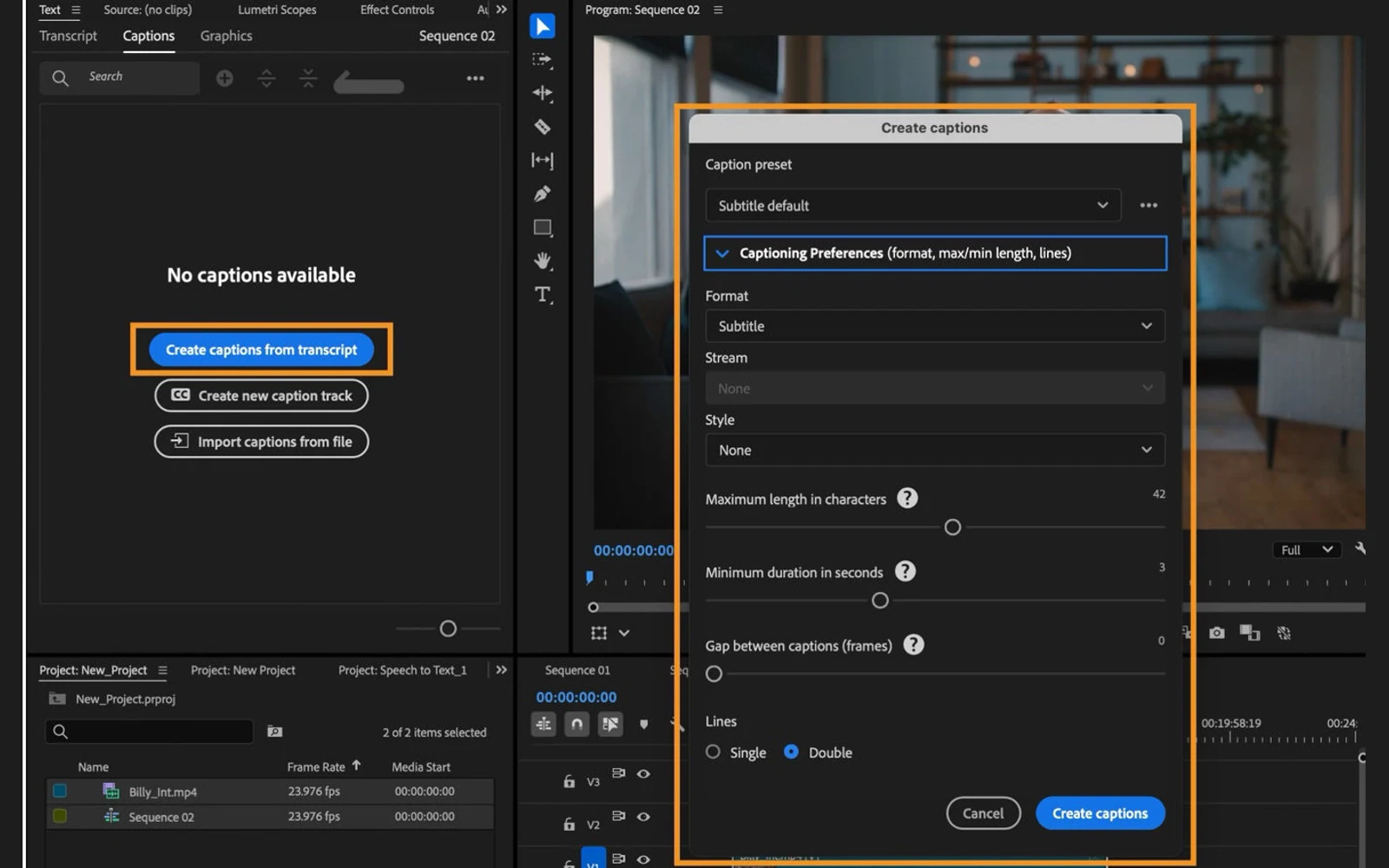
How to fix subtitles that are too fast
Check subtitle characters per second, shorten copy without losing meaning, and review timing before delivery. Includes an offline SRT exercise and checker.