How to test a localization MCP connection before translating
A server appearing in your editor is the beginning of setup. Check the endpoint, the credential and the workspace separately before asking an agent to translate a campaign.
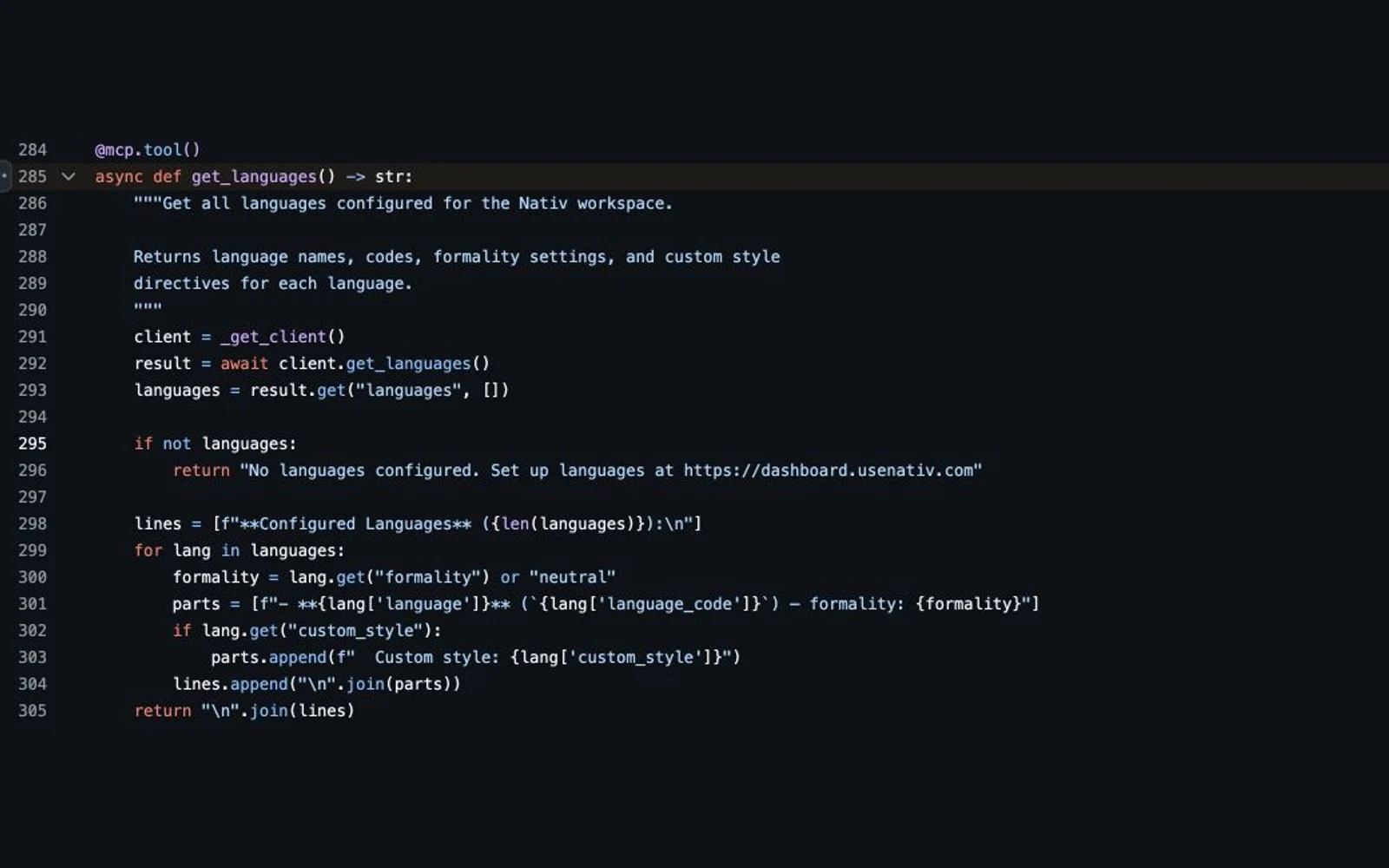
To test a localization MCP connection, confirm the exact endpoint and authentication method, connect through your client, inspect the available tools, then make one read-only workspace request. Start with Nativ’s get_languages. Check the actual tool result before approving a translation, media generation or shared-memory change.
This separates four questions that a green connection indicator cannot answer on its own: Is the service reachable? Did the client send the credential? Which workspace did it reach? What action are you authorising next?
The credential question is real. In a Reddit discussion about version-controlled MCP configuration, the original poster wanted to share configuration without sharing keys. Replies offered several client-specific formats. A Cursor support thread describes another trap: copying a VS Code input configuration into Cursor did not produce the expected credential prompt. Use your client’s current documentation rather than assuming every MCP configuration format is interchangeable.
This guide is written by Nativ and checked on 2 November 2026. We tested the two public endpoint checks below and exercised the language-reading client method offline. We did not connect a real account in Cursor, run a paid translation or test language quality. The authenticated steps are a procedure for you to verify in your workspace.
1. Choose the connection you actually need
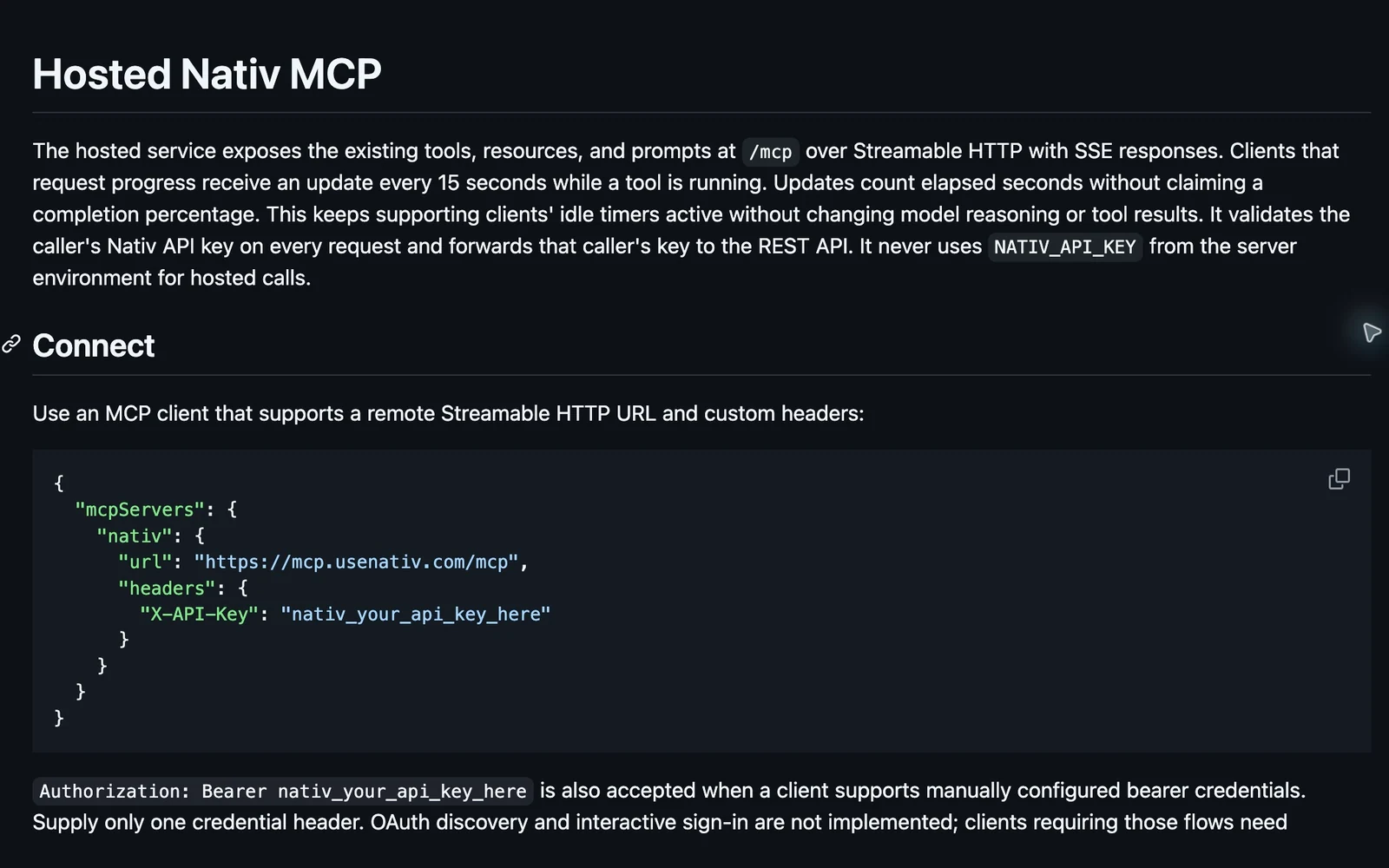
Nativ’s full hosted MCP service is at:
https://mcp.usenativ.com/mcpIt uses Streamable HTTP and a Nativ API key supplied through one header: X-API-Key, or a manually configured Authorization: Bearer credential. This full endpoint does not provide interactive OAuth sign-in. A client that only offers browser sign-in cannot use this API-key setup merely by receiving the URL.
Nativ also has a local stdio server. Choose that when the workflow needs to read and write local files; consult the local installation instructions for its runtime requirements. Running the bridge locally still sends relevant requests to Nativ’s API. It does not turn localization into an offline operation.
For the broader tool choices, see our MCP workflow overview. Here, the goal is to prove one connection before doing work through it.
2. Keep the real key out of shared configuration
Create a key through Nativ Settings → API Keys. Handle it as an account credential. Do not paste it into a chat prompt, screenshot, issue report or committed JSON file.
For Cursor, use its documented environment interpolation in the remote header:
{
  "mcpServers": {
    "nativ": {
      "url": "https://mcp.usenativ.com/mcp",
      "headers": {
        "X-API-Key": "${env:NATIV_API_KEY}"
      }
    }
  }
}
Download the secret-free Cursor template. Merge the nativ entry into your existing configuration; replacing the whole file could remove other servers.
Make NATIV_API_KEY available to the process that launches Cursor, using your organisation’s approved secret-handling method, then reconnect. Setting it in an unrelated terminal does not prove the editor received it. Cursor’s current documentation distinguishes remote environment interpolation from envFile, which is for stdio servers.
Environment references remove the literal credential from this JSON file. They do not prevent every form of credential exposure or restrict the account’s permissions. Review what your editor, extensions and enabled tools can access. If a real key has already been shared, revoke it in Nativ and replace it; editing the latest file does not erase earlier copies.
3. Check reachability without sending a key
Before debugging credentials, run these public checks in a terminal:
curl --silent --show-error --max-time 30 \
  --output /dev/null --write-out 'Health: HTTP %{http_code}\n' \
  https://mcp.usenativ.com/health

curl --silent --show-error --max-time 30 \
  --output /dev/null --write-out 'No-key MCP: HTTP %{http_code}\n' \
  https://mcp.usenativ.com/mcp
On 2 November, we observed HTTP 200 from /health and HTTP 401 from /mcp without credentials. The first confirms the public health route responded. The second is the expected authentication guard, not a reason to remove authentication.
The downloadable public preflight script performs those same checks and exits unsuccessfully if either status differs. It contains no credential and makes no generation or account-write request. Read it before running it.
Passing this check does not establish that your key works, that your client negotiated MCP successfully, or that a translation will succeed. Open the client’s MCP controls and reconnect there for those next steps. A browser tab displaying a 401 is not an authenticated MCP session.
4. Inspect tools, then read the configured languages
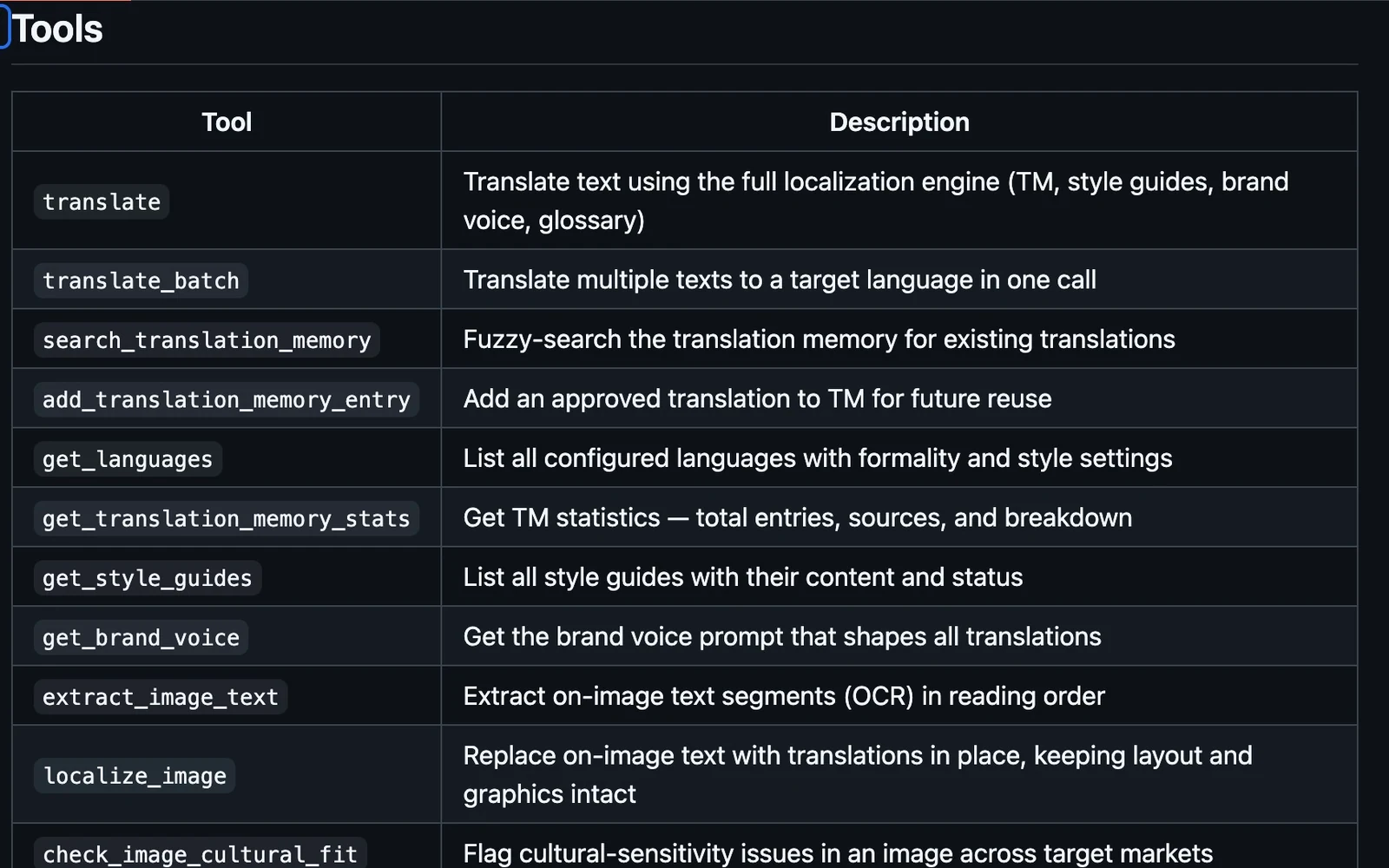
Confirm that the connected Nativ server exposes get_languages. Tool discovery and tool execution are different operations: seeing a tool name is not evidence that its account request succeeded. MCP’s architecture documentation explains that distinction.
Use a constrained first request:
Use only Nativ's get_languages tool. Show the languages and codes
returned by the tool. Do not translate, generate media, change settings
or save translation memory. If the call fails, show the error and stop.
Inspect the tool-call record as well as the assistant’s explanation. In the released implementation, get_languages reads /user/languages; it does not call the translation endpoint. Its result can also contain formality and custom style settings, so avoid publishing a workspace’s response as a troubleshooting screenshot.
Compare the returned settings with the intended workspace in the dashboard. Identical language lists can exist in different workspaces, so the list alone does not identify the account.
A successful result may report that no languages are configured. That is different from an authentication failure: check the workspace and configure the intended languages before asking the agent to use them. Do not let it invent a configured-language list from general knowledge.
This is an operational read-only check, not a server-enforced read-only account mode. Keep client tool approvals enabled where available. A prompt restricting one task does not reduce the underlying credential’s authority.
5. Diagnose the layer that failed
Work from the first failed check rather than changing the URL, key and client settings together.
- Health request fails: inspect network connectivity, DNS, TLS and service availability. Keep certificate verification enabled. Credentials cannot fix a request that never reaches the service.
- Authenticated client gets 401: check that the editor received the intended variable and uses the full
/mcpendpoint. An absent, invalid or expired key needs attention; a public no-key 401 alone is expected. - Request gets 400 with a credential-header error: supply one supported credential header. Nativ rejects simultaneous API-key and bearer headers.
- Client insists on OAuth: verify its support for manually configured headers. The full Nativ endpoint cannot acquire OAuth support through a different JSON label.
- Connected, but no usable tool result: inspect the client’s protocol error and tool-call result. Do not substitute a guessed answer for a failed
get_languagescall. - A later media task cannot read a laptop path: the hosted server needs an accessible HTTPS media URL. Use the local workflow for local-file handling, or provide an appropriately controlled signed URL. Successful language lookup does not test media access.
When requesting help, include the client version, transport, public endpoint, timestamp and redacted status/error. Remove keys, authorization headers, signed URLs and private content from logs before sharing them.
6. Approve a small localization task separately
Once the read-only result matches your workspace, prepare one short, fictional source string. Specify the target locale, intended placement and any term decisions. Ask the agent to show the proposed tool and arguments before execution. Translation and media generation can consume Nativ credits; connection setup is not approval for an open-ended batch.
For a first text task, “Create a workspace” plus an onboarding context is enough. Our glossary guide explains how to supply a term decision and check its treatment without confusing it with translation memory. Review the returned wording before using it in an application or approving it for reuse.
Keep a short handoff record: client, connection type, date checked, successful read-only tool, intended target locale and the next action approved. Never put the credential in that record. The useful outcome is a connection whose next action you can explain and inspect.
Product references
Localization MCP servers for 2027: six workflows compared
Compare six localization MCP servers by workflow, deployment and review needs, with a practical checklist for choosing tools for your 2027 stack.
An AI agent needs more than a translate button.
Nativ MCP 0.5.0 connects AI agents to 51 localisation tools across text, images, audio, subtitles and shared brand context.