Localise the selection. Keep creating.
A social post can contain editable copy, words baked into an image and several elements that should stay exactly as they are. The selection is a useful place to begin.
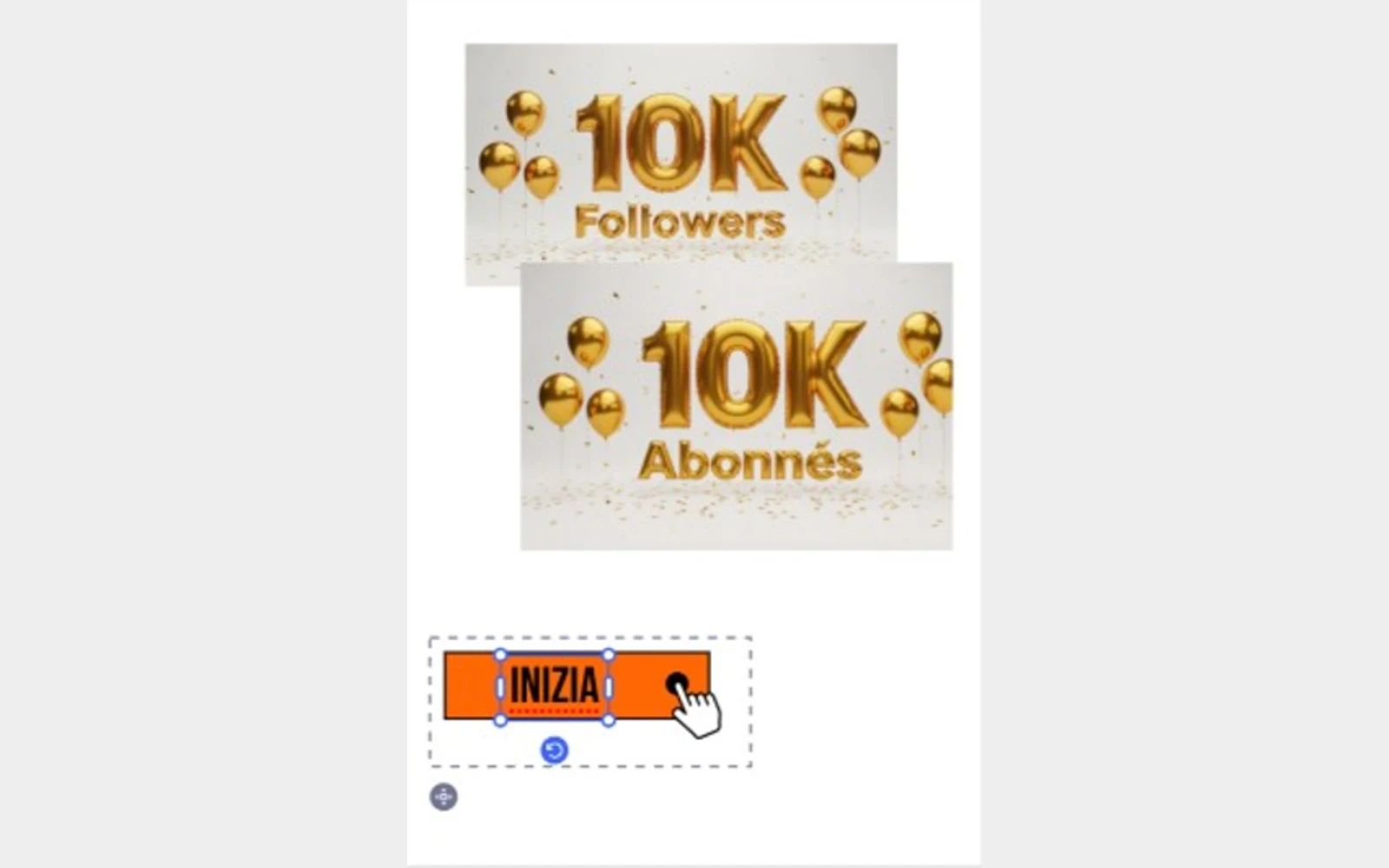
A social graphic announces a milestone. The headline is editable text. The celebratory lettering is part of an image. The logo belongs to the brand and should remain recognisable in every version.
Selecting the whole canvas and treating it as one translation problem hides these differences. Nativ’s Adobe Express add-on starts with the selected content and gives text, image and video selections different workflows.
This guide focuses on text and images: two common cases where the same visible word can require very different editing operations.
An editable word and an image of a word
A text layer has characters the host editor can replace. An image has pixels. Adapting text inside that image requires an image-localisation operation and a visual result that can be placed back into the design.
Nativ reports what is selected in the panel, helping the user choose an operation appropriate to that selection. In the text workflow, the add-on reads the selected text and applies translated content back through Express’s document interface. In the image workflow, it works with the selected image and places the resulting artwork into the document.
The distinction matters at review time. An adapted raster image remains image content. Its letters have not become native Express text objects that can be edited like a headline.
Make the brief travel with the asset
A useful instruction describes the audience and the role of the content. “Keep the product name Field Notes in English; use a direct, welcoming tone; this is a social announcement” tells the workflow more than “translate to French”.
The add-on includes glossary and style-guide inputs alongside the language controls. Use those for terminology and writing requirements that would otherwise be repeated in every request. Keep the brief small enough to be unambiguous: a focused glossary is easier to review than a long list of loosely related words.
The source selection still deserves attention. A decorative object should not enter the operation simply because it shares a group with translatable content. Start with one object whose result you can inspect clearly.
Walk through a text-and-image post
- Make a working copy of the design. Keep the source available for comparison throughout the exercise.
- Find Nativ Localization in Express add-ons. Open it and connect your Nativ account using the available sign-in flow.
- Start with editable text. Select a headline or button, choose the language, and provide a short context or glossary where needed.
- Localise and inspect the text. Check wording, line breaks, font coverage and the relationship to surrounding artwork.
- Select an image containing words. Use the image-localisation controls. Review the available placement choice so you understand whether the result will be added alongside the source or replace the selected artwork.
- Compare the complete design. Check the logo, product name, visual emphasis and any small-print text. Remove temporary comparison objects only after the result has been reviewed.
The published demonstration screenshots show this distinction in practice: image lettering changes from “Followers” to “Abonnés”, while a separate editable call to action follows its own text workflow. Those are demonstration assets, not a measured customer outcome.
Review the page, not just the changed object
A correct translation can alter the balance of a design. A longer line may compete with a product image. A target script may need a different typeface. A translated call to action can be understandable but feel too formal for the rest of the campaign.
Read the final canvas as a viewer would encounter it. Check whether the image and editable copy now use the same terminology and register. Review exports at the size people will actually see, particularly on a phone.
For a team moving between tools, the same habit applies in Figma and Photoshop: bring the language into the creative environment, then judge the complete asset there.
Product references
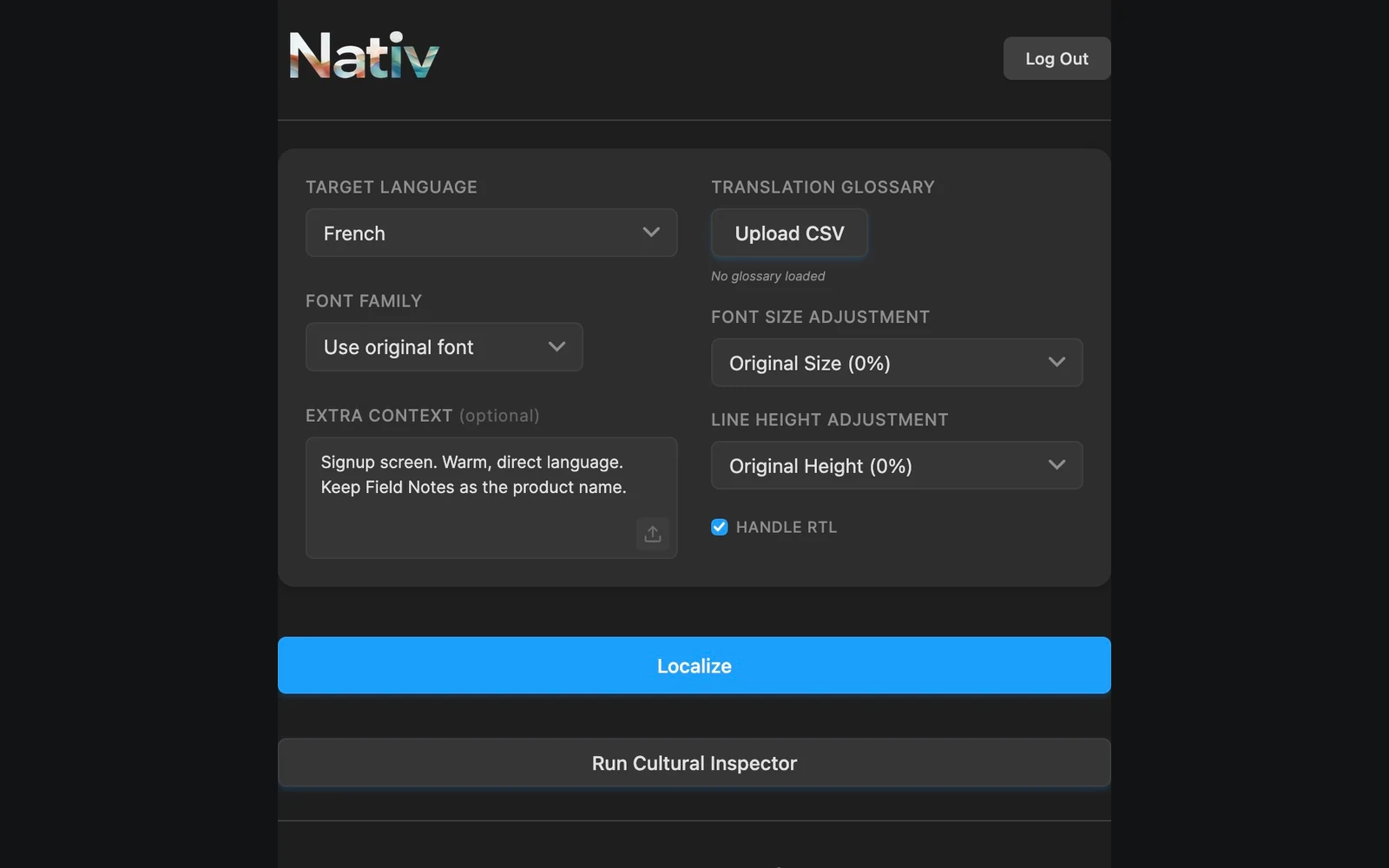
The words are part of the design.
Localise Figma text in context with Nativ: preserve the source, supply terminology, and review typography and hierarchy on the canvas.
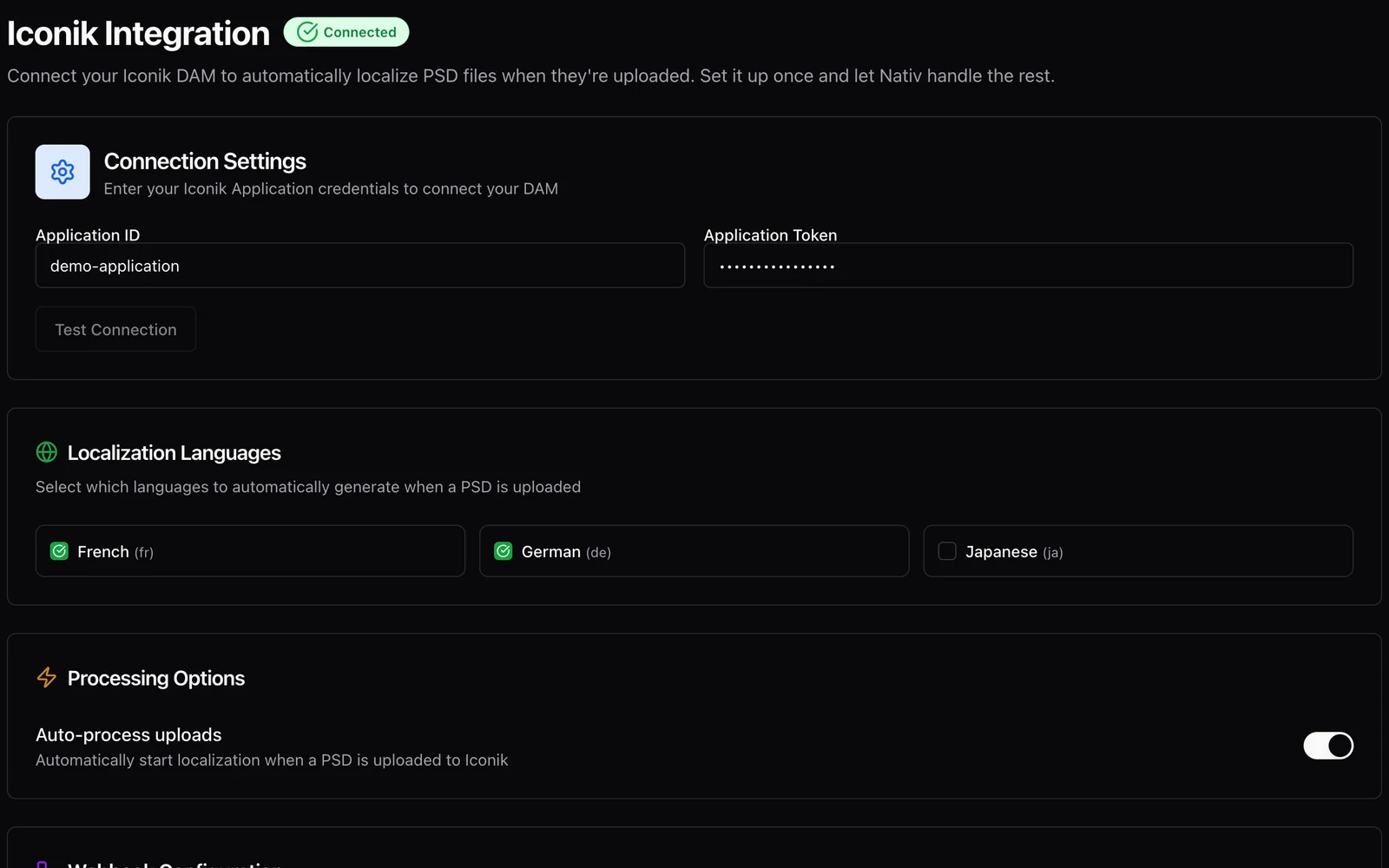
Let the asset library start the localisation workflow.
Connect iconik to Nativ for PSD localisation, configure target languages, and test an upload-triggered workflow with a clean demonstration asset.