Your next plugin can start with a localisation engine.
A useful integration begins with the work a person is already doing. Nativ provides the localisation capabilities; your product decides how they fit into that work.
A designer has selected a headline. A content editor has opened a product record. A developer is looking at a new onboarding string.
Each person is already in the right place to understand the work. A good localisation integration should begin there.
That is the opportunity for builders: make localisation a natural operation inside a product people already use. The host application knows what is selected and where a result belongs. Nativ supplies translation and media capabilities, together with the brand context in the user’s workspace.
The smallest useful version is a complete loop: select, localise, preview, apply.
Decide what your application owns
Before choosing an endpoint, define the boundary.
Your application should own the interaction with its host: selecting content, preserving its identity, displaying progress, showing a preview and applying an approved result. It should also decide what to do when the source changes while a request is running.
Nativ handles the localisation request against the authenticated workspace. Translation memory, style guidance and brand voice can supply context beyond the string in front of the user.
This division keeps the integration understandable. You do not have to recreate a localisation platform, and Nativ does not have to understand every detail of your host editor.
Make one server-side call
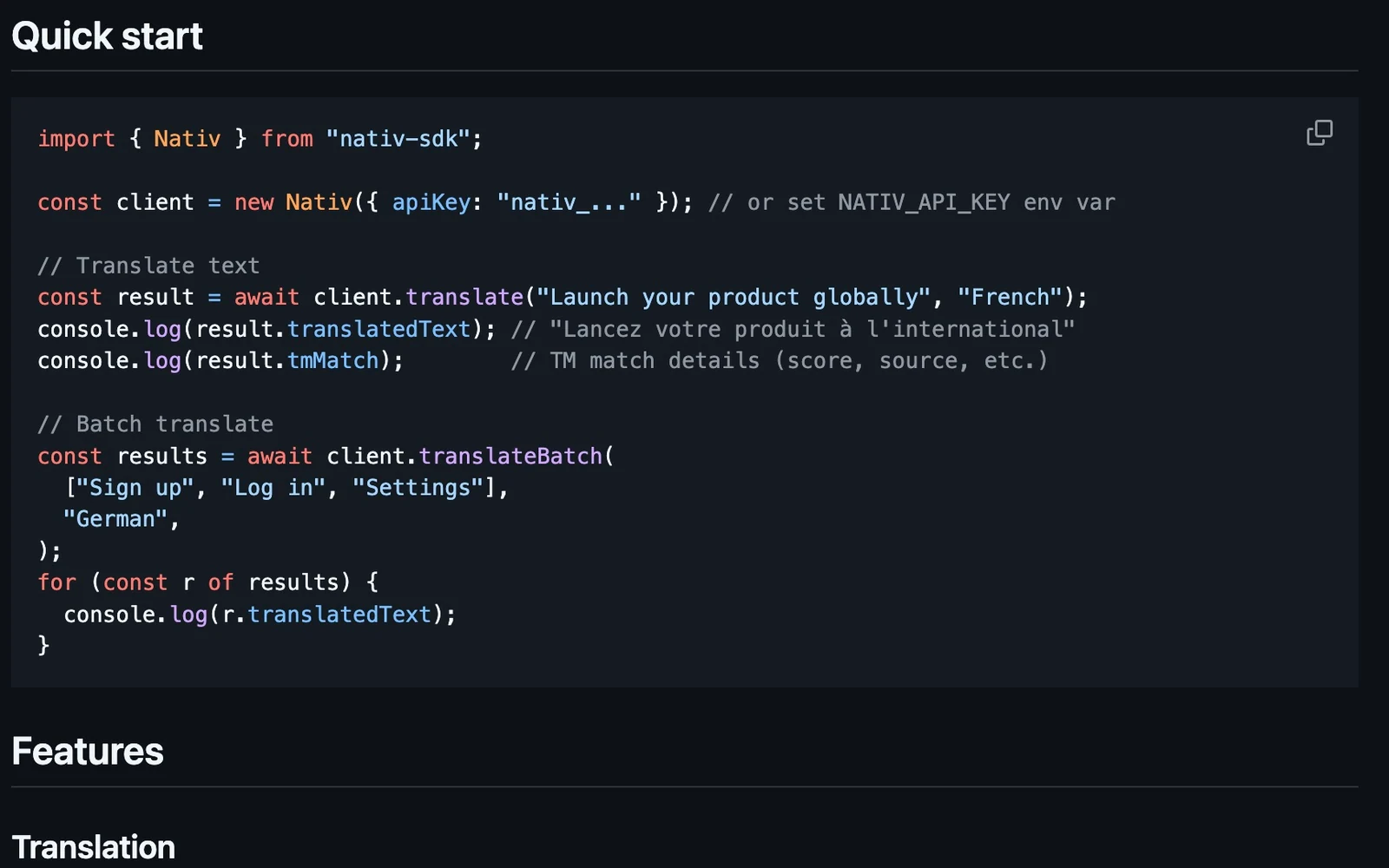
For a TypeScript application, install the SDK:
npm install nativ-sdkSet NATIV_API_KEY in your server environment. Keep a shared application key on the server; browser code is delivered to the people using it.
The following is a minimal server-side example. It logs a result for inspection; it does not insert text into an editor or create an HTTP route.
import { Nativ } from "nativ-sdk";

const client = new Nativ({
  apiKey: process.env.NATIV_API_KEY,
});

const result = await client.translate(
  "Make room for something new.",
  "French",
  {
    context: "Short campaign headline for a homeware brand",
    backtranslate: true,
  },
);

console.log({
  translation: result.translatedText,
  backtranslation: result.backtranslation,
  rationale: result.rationale,
  memory: result.tmMatch,
});
The output gives your application more to work with than a replacement string. A preview can show the proposed translation and the review information returned by the API. A person can assess the result before it touches the source.
The developer quickstart includes the equivalent Python example and links to the full reference.
Preserve identity across the request
Suppose a user selects a headline, starts localisation, then edits the same headline before the response arrives. Blindly writing the old request’s result into the current selection can overwrite their work.
A more reliable integration keeps the source identity and value with the request. When the result returns, compare it with the current host state. If the source has changed, ask the user to review the result against the new source or start a fresh request.
For batches, keep an explicit mapping from each source item to its result. Do not rely on the visual selection remaining in the same order. The host application may reorder layers, rows or records while the network call is in flight.
These are integration responsibilities. They matter just as much as the quality of the translation.
Make preview a real product step
A good preview answers three questions:
- What source did this result come from?
- What will change if I apply it?
- Can I keep or revise the current version?
For a headline, a side-by-side text preview can be enough. For an image, show the visual result. For audio, let the person listen. For an editable document, show the result in its intended space where the host supports that.
Make failures specific. If three items in a batch succeed and one fails, the user should be able to see which one needs attention. Preserve successful work and make the retry target clear.
An integration earns trust by making its state legible.
Choose the interface that fits the host
Use the TypeScript or Python SDK when your application benefits from typed methods and a convenient client. Use the REST API when your runtime or architecture calls for direct HTTP.
Use MCP when the host is an AI agent that discovers and calls tools. For a connector that accepts JSON requests and HTTPS media URLs, the JSON tools adapter offers another route.
These are different ways into the same family of capabilities. Pick the one that fits the host’s authentication, file handling and interaction model.
Grow from a complete loop
Start with one content type, one target language and a result that can be reviewed. Once that loop works, add more of the workflow: batch selection, translation-memory lookup, workspace language settings or media processing.
The first milestone should be something a person can finish inside your product. A small integration that gets them from selection to approved output is a stronger foundation than a large list of disconnected API calls.
Product references
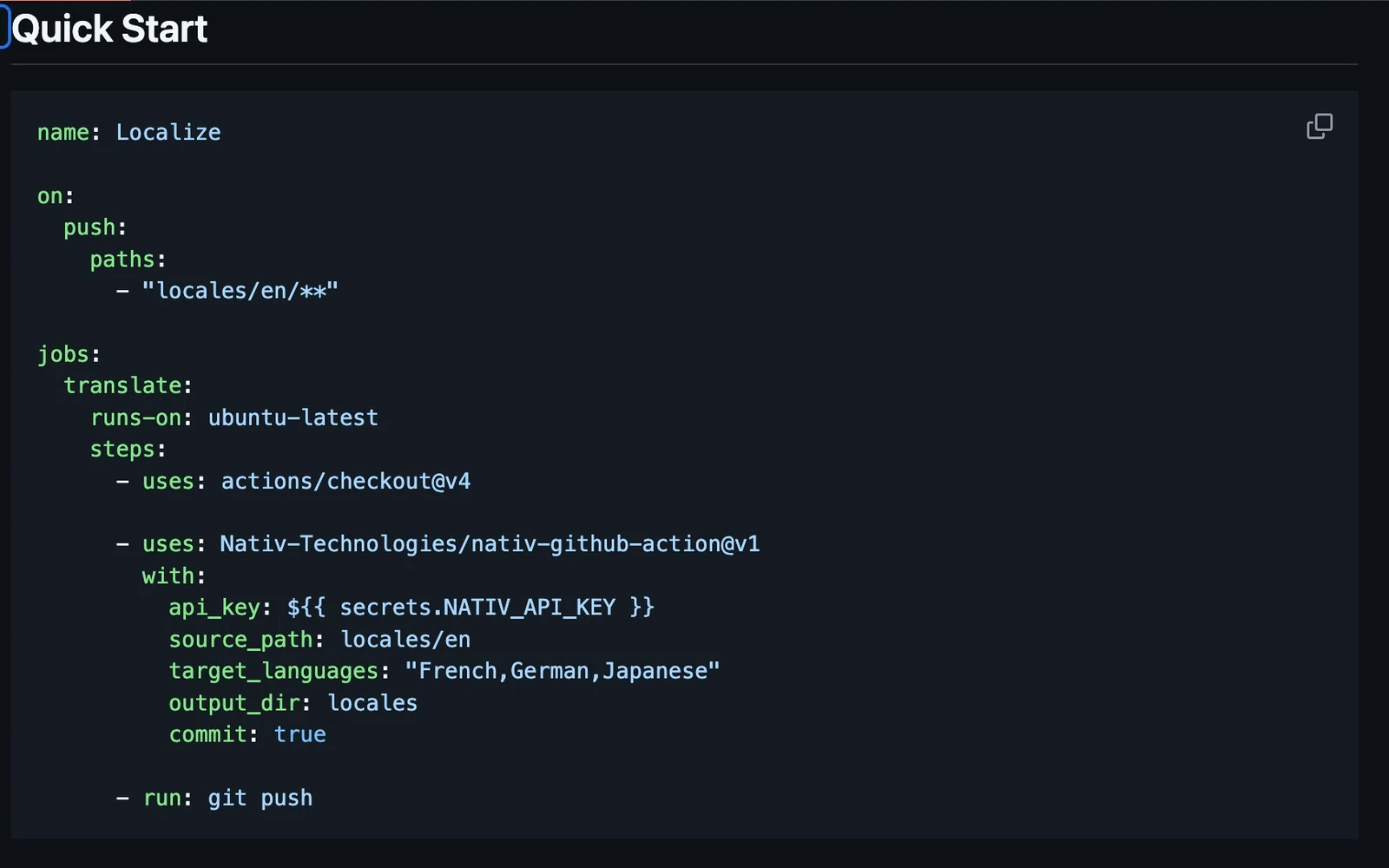
Make language changes reviewable in the repository.
Run Nativ’s GitHub Action on a small locale file, inspect generated translations as artifacts, and decide how changes should enter your repository.
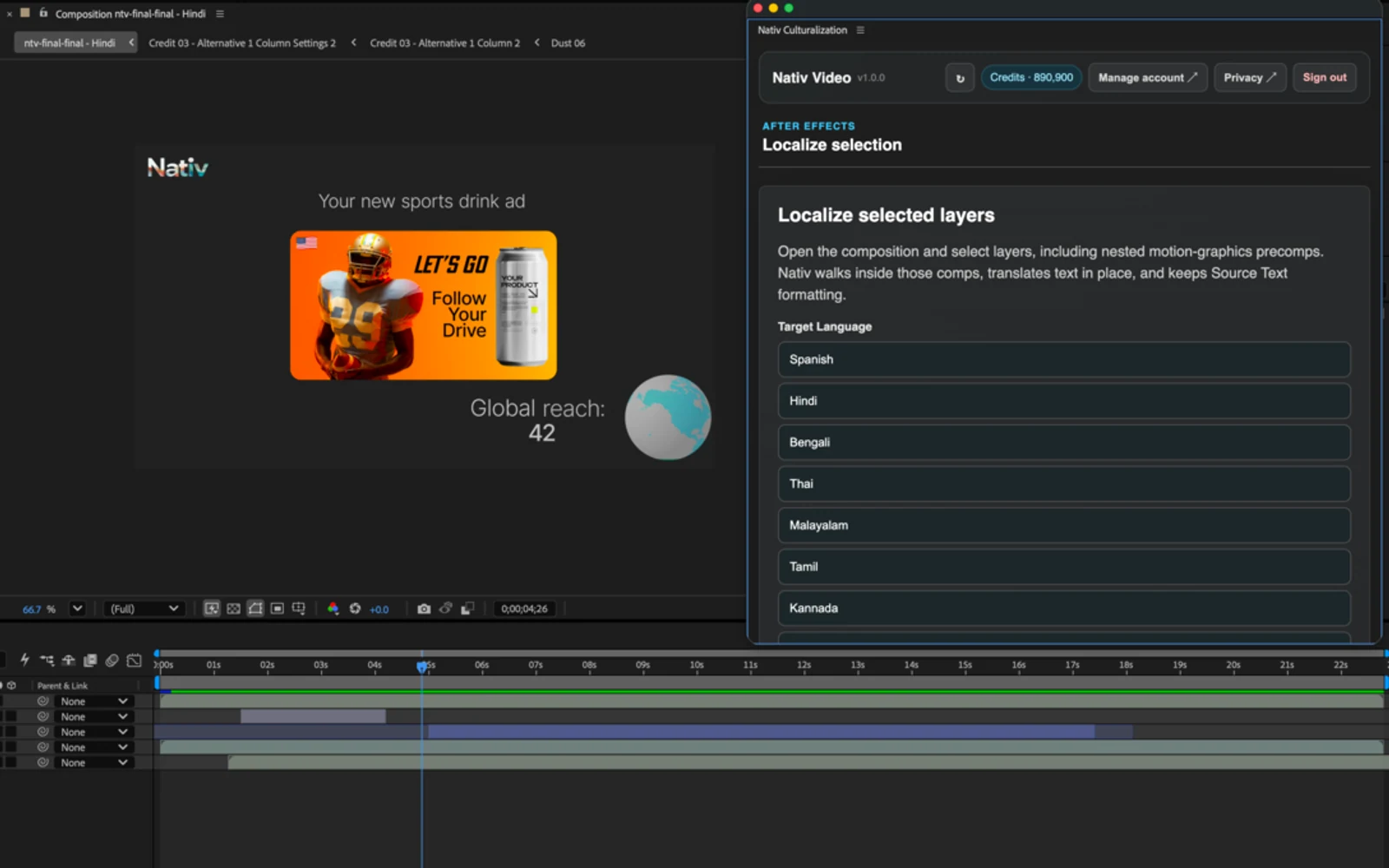
A translated film should still be your film.
How Nativ for After Effects localises text, images and audio across layered compositions while keeping the project editable.